Receipts, sorted: the 8-second habit, how scanning works, and why they stay yours
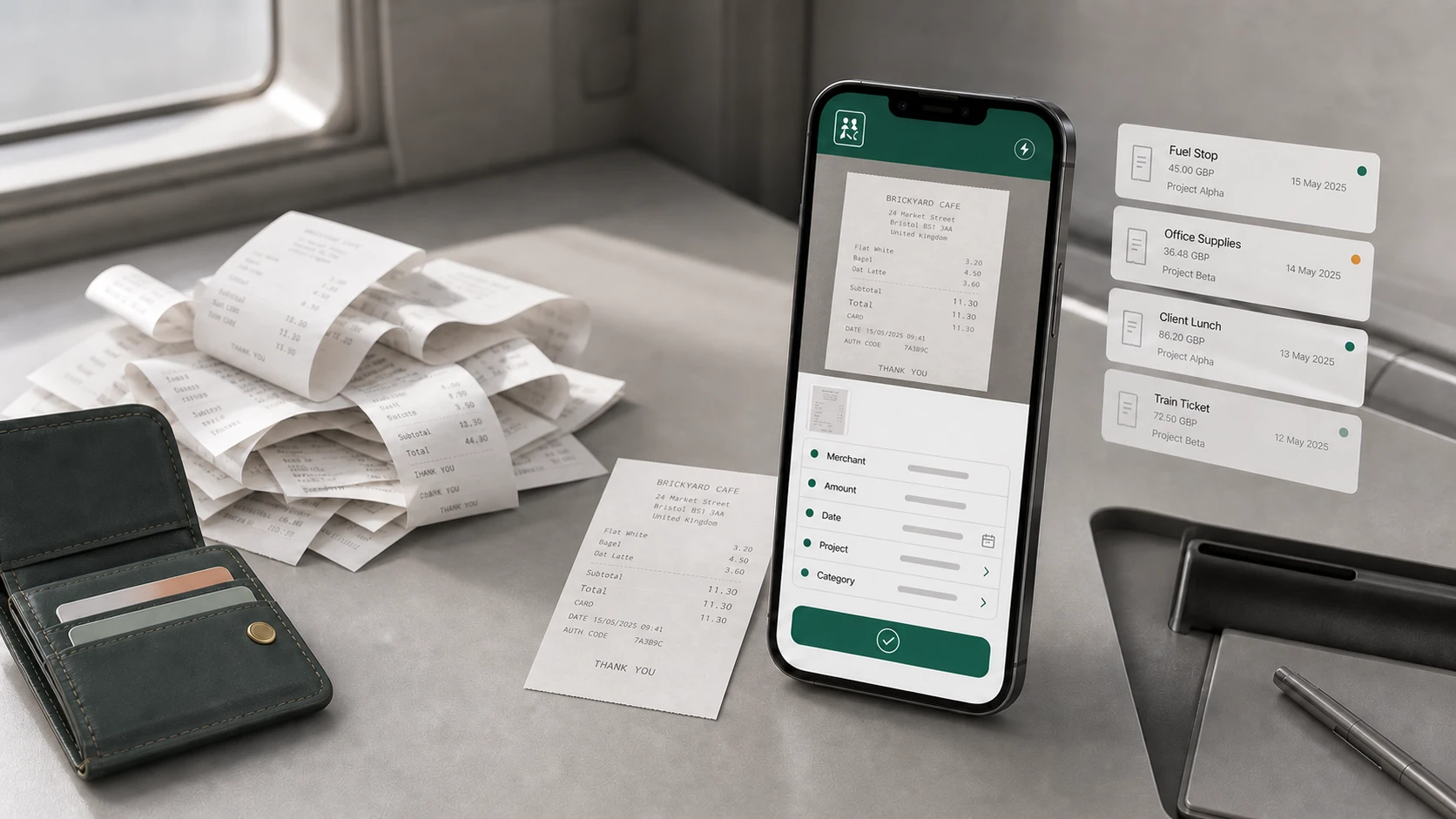
There is a shoebox. Or a glovebox. Or a jacket pocket with a fistful of curled paper in it. Everyone has a version, and everyone feels slightly guilty about it. Here is the thing worth saying out loud: you are not disorganised. At the moment you get a receipt you are busy, walking out of a shop with your hands full or sitting in a van with the engine running. Filing it properly would take two or three minutes you do not have. So it goes in the pocket, and the pocket becomes the pile. This is the whole story of what to do about that: the habit, what the app actually does with the receipt, and where it goes afterwards.
What the pile actually costs
The pile does not feel expensive. That is what makes it dangerous. It quietly costs you in three ways:
- Money you never claim back. A receipt that fades or vanishes is simply money you spent and never got back.
- Time, at the worst possible moment. Month end arrives, and now someone is sorting paper instead of doing the work that earns.
- Not knowing where you stand. If half the spend is still in a pocket, your budget is a guess.
The real problem is not the filing. It is the gap between spending and recording. Close that gap and the pile never forms.
The habit: photograph it before you put your wallet away
That is the whole thing. Not “file it later”. Not “sort it on Sunday”. Photograph it while you are still standing there, because that is the only moment you reliably have. For that to work the app has to be quick enough to fit in the moment, so TaskSpend reads the receipt for you.
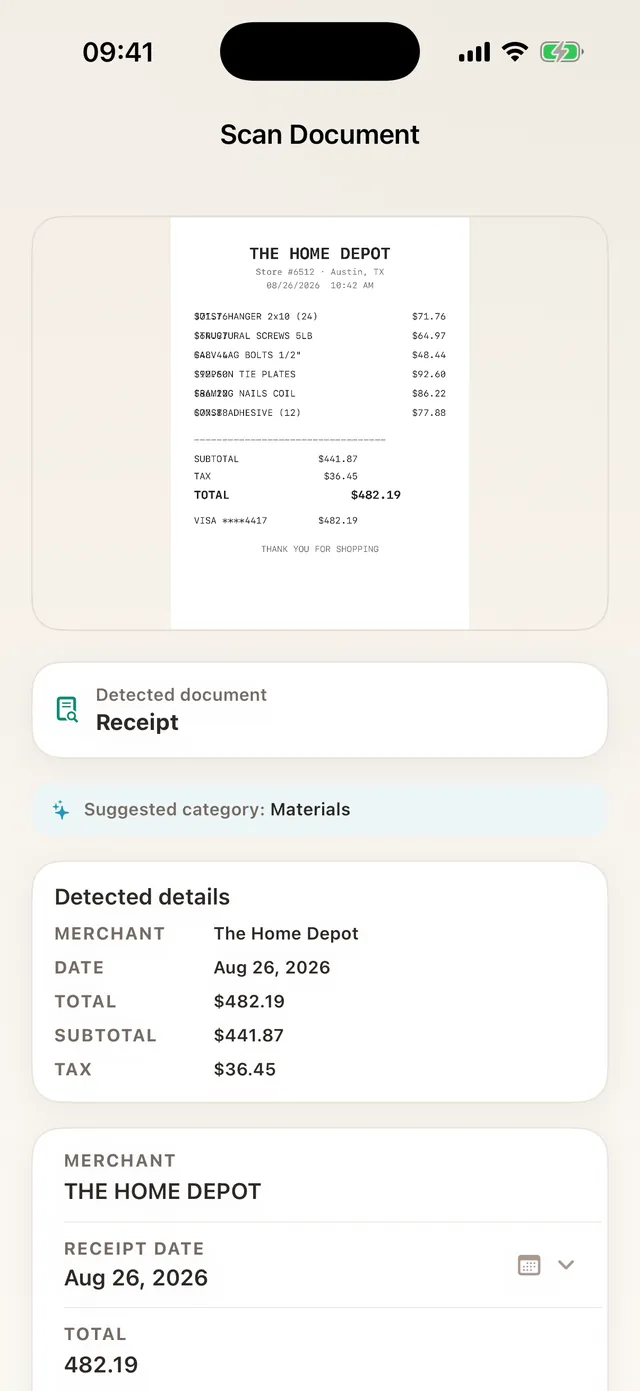
- Open TaskSpend and tap the camera. The scanner finds the receipt edges on its own.
- The text is read and the fields fill in: merchant, amount, date, and a suggested category.
- You glance over it, pick the project, and submit. The budget updates straight away.
You are always the editor. Nothing is saved until you have seen what was read and had the chance to fix it, which in practice takes a second or two; the usual correction is picking a different category.
Even faster: scan from the Lock Screen
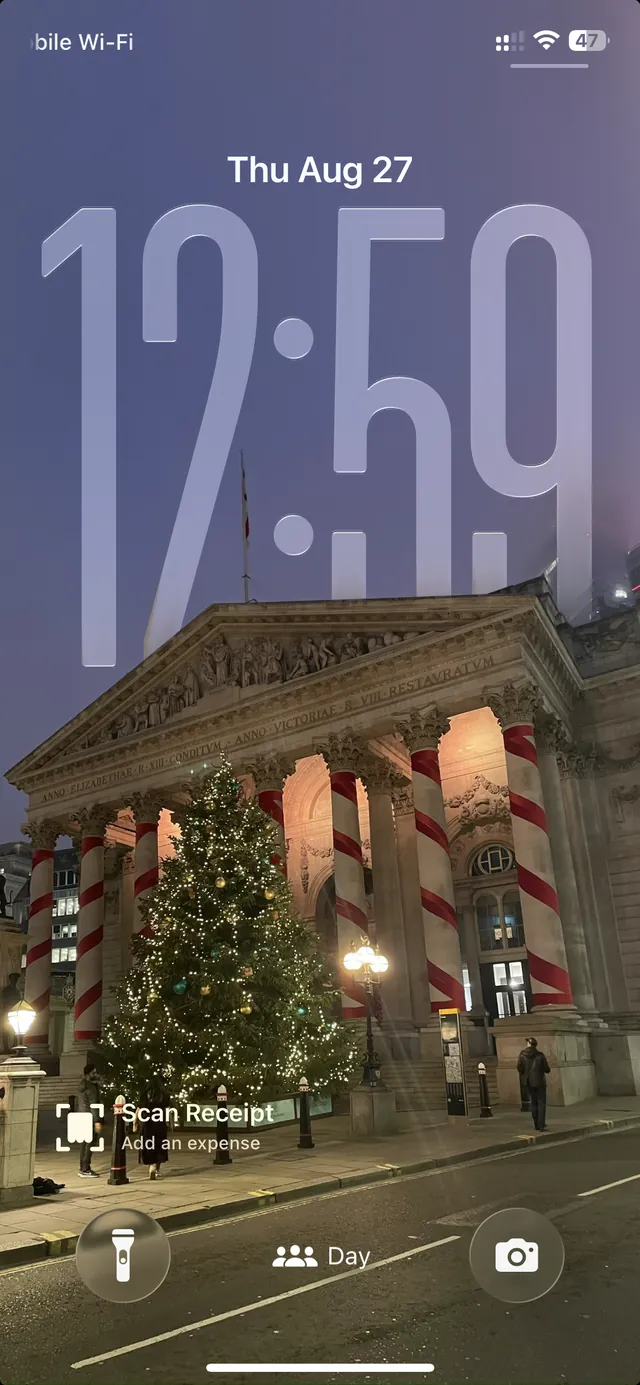
The receipts that get lost are the ones that had to wait: wait for the app, wait for the right screen, wait until you are back in the truck. So TaskSpend’s Scan Receipt control sits right on your iPhone Lock Screen, next to the flashlight and the camera. Tap it and you are in the scanner, pointed at the receipt, before it ever reaches your pocket. The whole thing takes about eight seconds.
- Press and hold your Lock Screen, then tap Customize.
- Choose the Lock Screen, tap the widget area, then Add Widgets.
- Pick TaskSpend, then Scan Receipt, and tap or drag it into place.
It happens on your phone
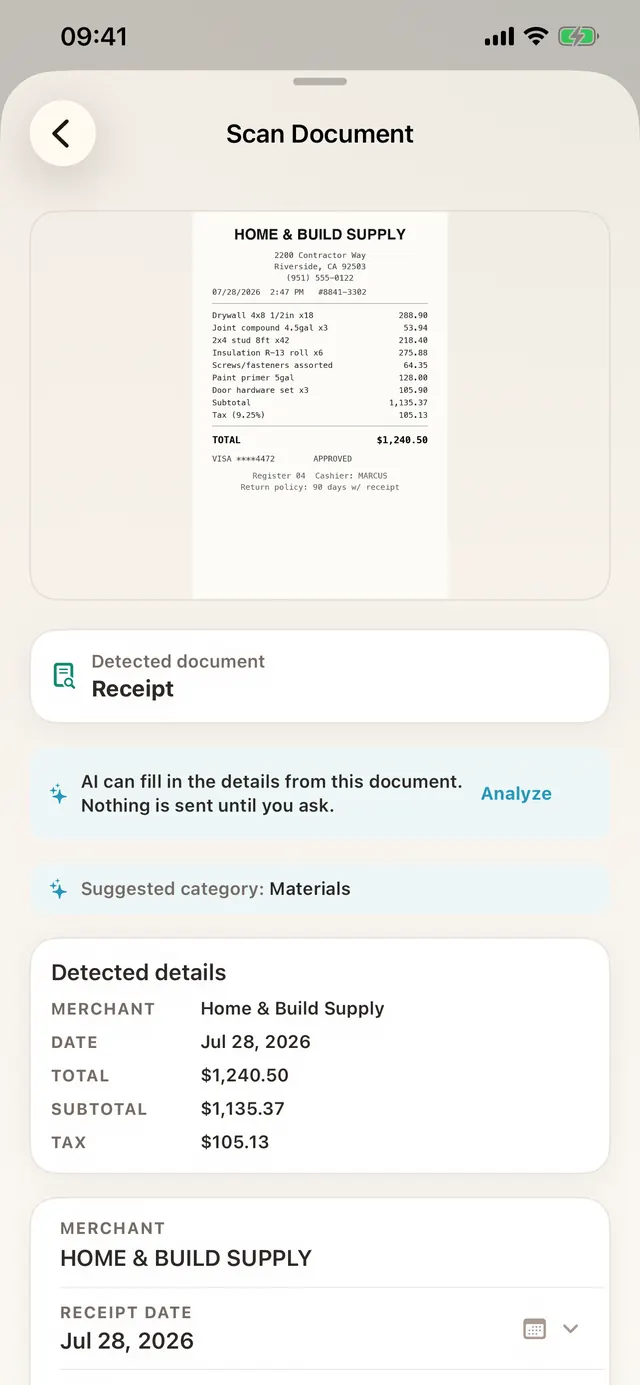
The reading itself runs on your device, using Apple’s built-in text recognition. On the free plan, analysis happens on your phone too: the receipt is read and understood locally, and the photo and its text stay in your account’s private storage. There is no third-party OCR service in the middle, and the picture does not need to travel anywhere to be understood.
What Premium adds, and why it is a choice
Premium workspaces can turn on cloud AI analysis for trickier documents, which helps with long supplier invoices and dense statements. Three things about that:
- It is off until you turn it on, with a clear in-app consent step.
- You can revoke it at any time in account settings, and it stops. Scanning keeps working on-device without it.
- We send the text we read, not your photographs.
Premium also brings duplicate detection: if the same receipt is scanned twice, TaskSpend notices before it lands in the books.
Where receipts live afterwards
Each receipt stays attached to its expense, inside its project. When your accountant asks about a charge from March, you search, tap, and the paper is there. No shoebox required.
Your receipts are nobody’s business but yours
Expense apps see something genuinely personal: where you go, what you buy, what your business is struggling to afford. That is worth being careful with. In plain words:
- There is no password to steal. You sign in with Apple or Google, so the only credential involved is one you already protect, and with Hide My Email we never even see your real address. Add Face ID or Touch ID and the app itself stays shut until it is you.
- Receipt images live in private storage. Never in a public folder, never listed anywhere, and every request for one is permission-checked before anything is handed back.
- Your team sees only its own corner. Members and Viewers see the rows they created, not the workspace budget, not each other’s spending. Approvers get the queue. Owners see the whole picture, because they are the ones paying for it.
- Nothing about you is for sale. No advertising, no tracking pixels, no analytics SDKs quietly shipping your behaviour to a third party. You pay us for the app, and that is the whole arrangement. Your information is encrypted while it travels and while it sits at rest.
- Leaving is easy, and final. Delete your account from inside the app or from the deletion page; we confirm it with a code sent to your email, and then it is gone.
The full detail lives in our Privacy Policy and Terms. They are written to be read, not to be survived.
What you get back
Once the gap closes, a few nice things happen without any extra effort. Your budget is accurate, because nothing is sitting in a pocket. Month end stops being an event. And when someone asks “what did we spend on that job?”, the answer takes seconds instead of an evening.
Already have a pile? You do not have to photograph it all. Drop in your bank or card statement as a PDF or CSV and TaskSpend turns every line into an expense, sorted into categories, with refunds handled properly. That part is free for everyone.
Try it on your next receipt
TaskSpend is free to start: one project, ten people, no card needed.
Get TaskSpend