Project expense tracking: a step-by-step guide, tools and tips
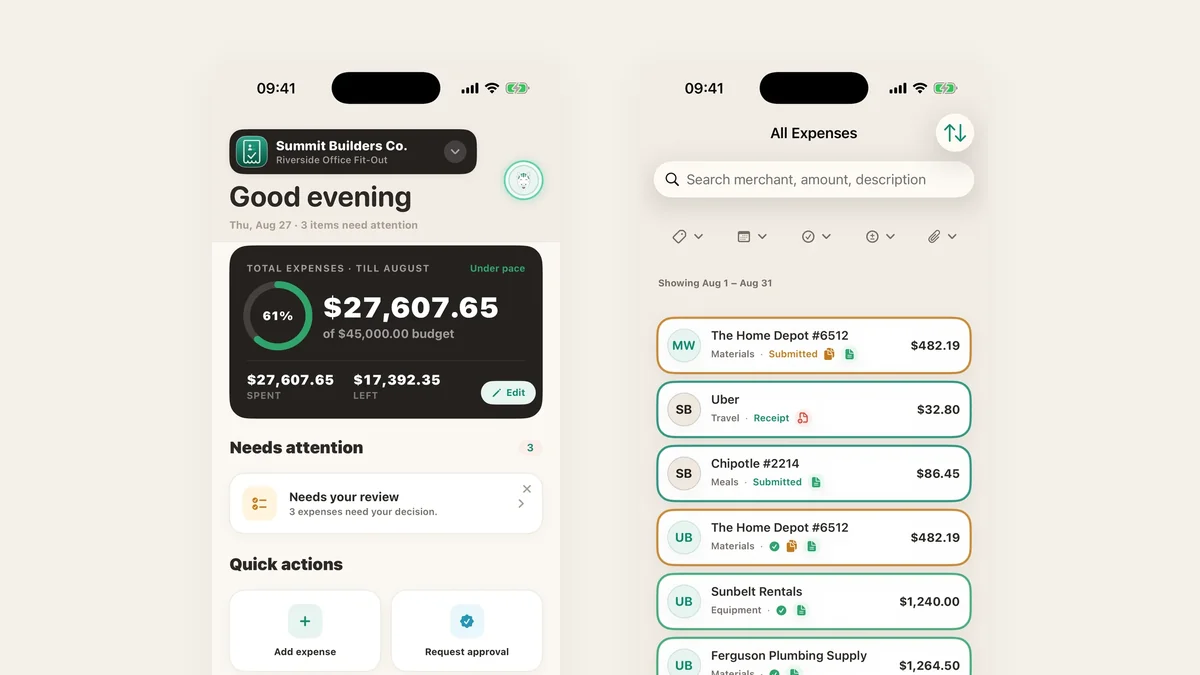
Most project budgets do not fail in one dramatic moment. They drift: a delivery nobody logged, a subcontractor invoice that arrived three weeks late, a card statement reconciled long after the decision it should have informed. This is the whole loop, in the order you actually do it.
1. Start with the project, not the expense
A project is the container everything else hangs off: a budget, a set of cost categories, the people allowed to spend against it, and a start and end date. Get that container right and every later step has somewhere to file itself.
Keep projects at the level you would defend a number at. One project per job, per client engagement, per production, per campaign. If you would never be asked “what did that cost?” about a thing, it is not a project, it is a category inside one.
In TaskSpend you can start from a template. Pick Construction, Film & Production, Events, Consulting or one of the other niches and the project is seeded with sensible cost categories, your budget split across them by weight, and default approval limits you can change.
2. Set a budget, and decide what kind it is
This is the step teams skip, and it is the one that decides whether every later number means anything. There are two honest kinds of budget:
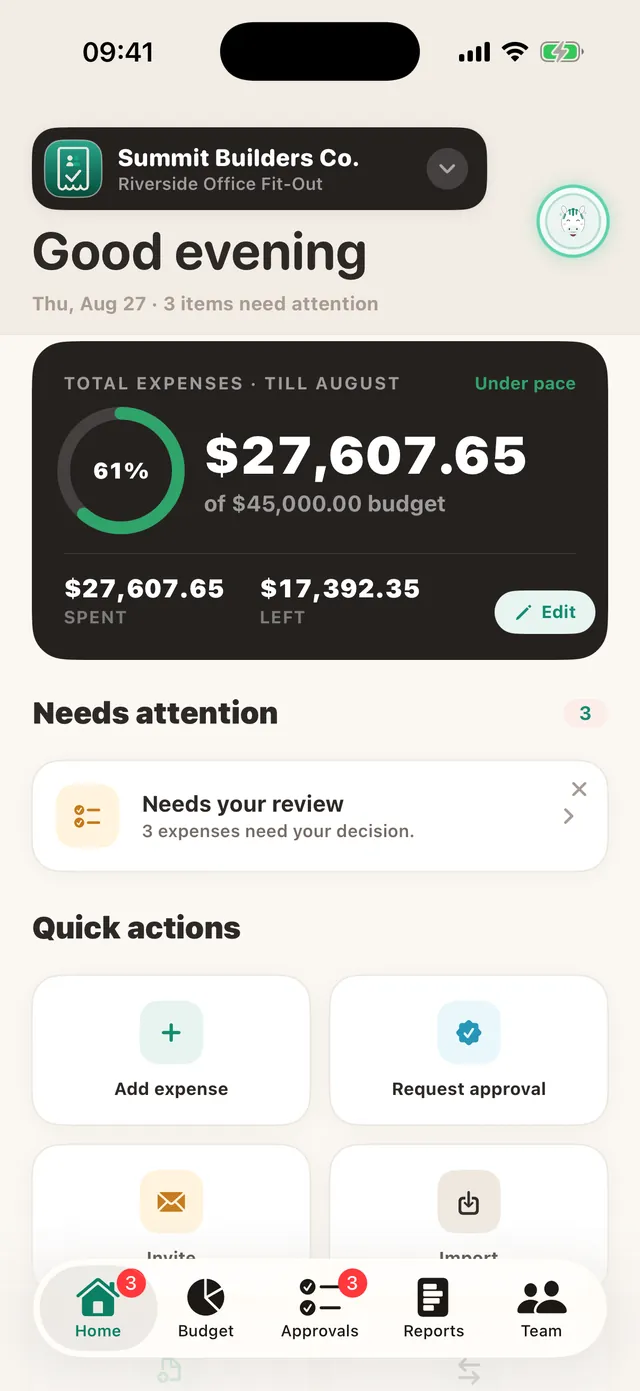
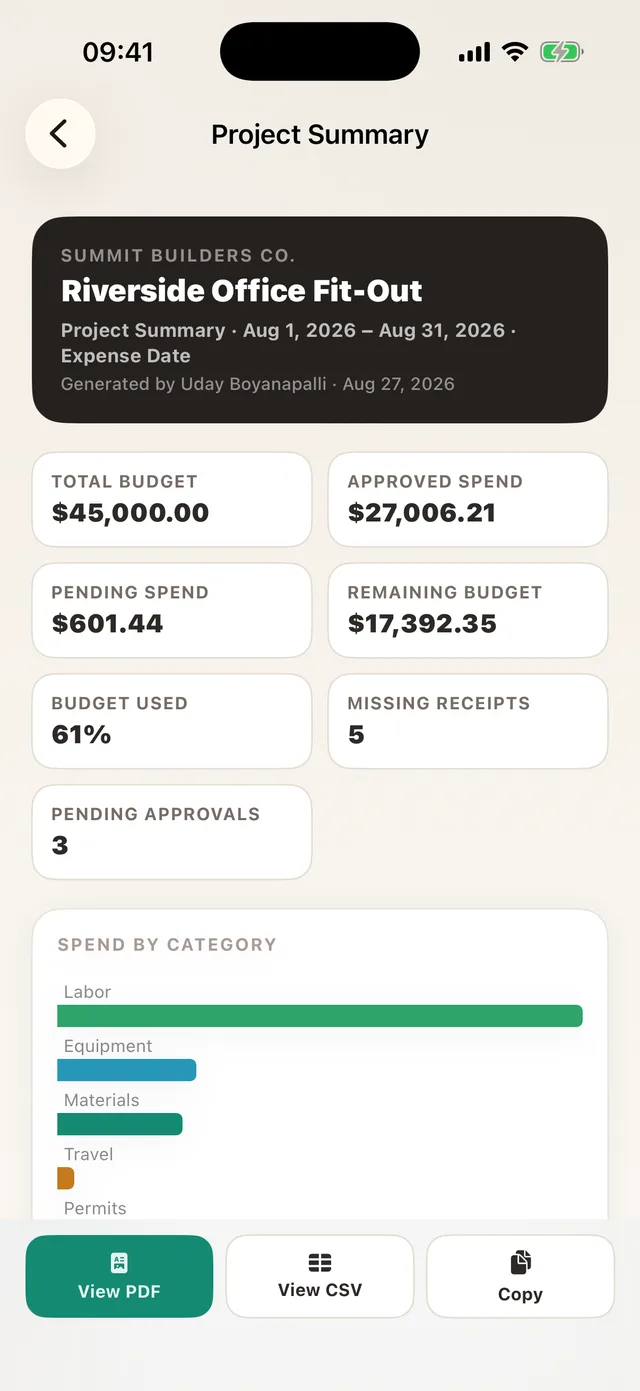
- An overall budget. One figure for the project’s whole life. A $45,000 fit-out is $45,000 whether you look at it in week two or month four.
- A monthly budget. A figure that resets, for ongoing work with no end date: a retainer, a maintenance contract, an operations budget.
TaskSpend asks you which one you mean, because the arithmetic differs. An overall budget is never divided across periods: switch the Budget tab to Week or Month and you see that period’s spend against the same full figure, not a prorated slice of it. A monthly budget does scale. Choosing wrong is how a project reads “over budget” in month two and stays that way forever.
3. Split the budget by cost resource
A single project number tells you that you are in trouble. It does not tell you where. Split the budget into the cost categories the work actually has: labour, materials, equipment, subcontractors, travel, permits.
Two rules that keep this useful. Use the fewest categories that would change a decision, because a category nobody can assign an expense to confidently is worse than none. And allocate the whole budget, including a contingency line, so that “unallocated” never becomes the place surprises hide.
There is a full walkthrough in how to use budget cost resources.
4. Decide who can spend, and how much
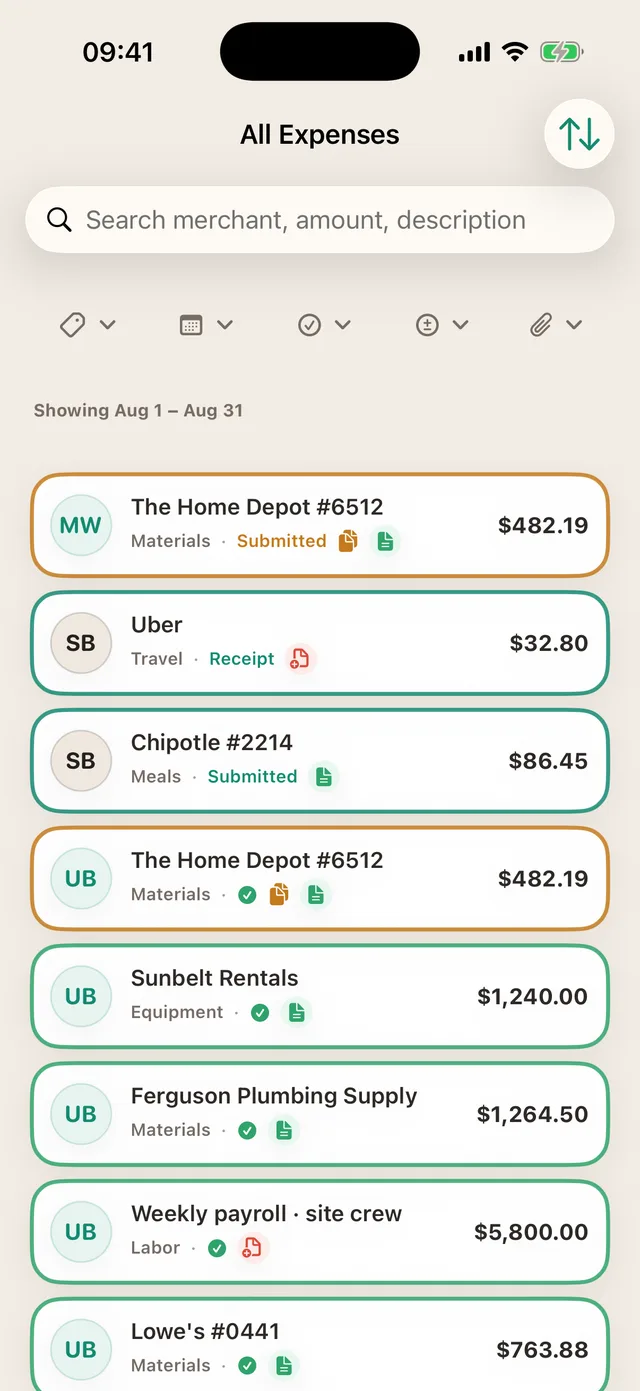
Roles do the heavy lifting here. In TaskSpend, Owners and Approvers see the whole budget and decide; Members submit their own expenses and requests and see their own work, not the company’s finances; Viewers read without touching.
Then set an auto-approval limit per category, so the system only interrupts someone when the amount deserves it. A $22 box of screws under a $250 materials limit files itself. A $1,200 vendor deposit does not.
Auto-approval rules are free on every plan. The point is not to approve less, it is to make the approvals that remain worth reading.
5. Capture the receipt at the moment of payment
Every receipt problem is a timing problem. The receipt exists, intact and legible, for about ninety seconds after the card comes out of the reader. After that it is in a pocket, a van door, a coat you will not wear again until October.
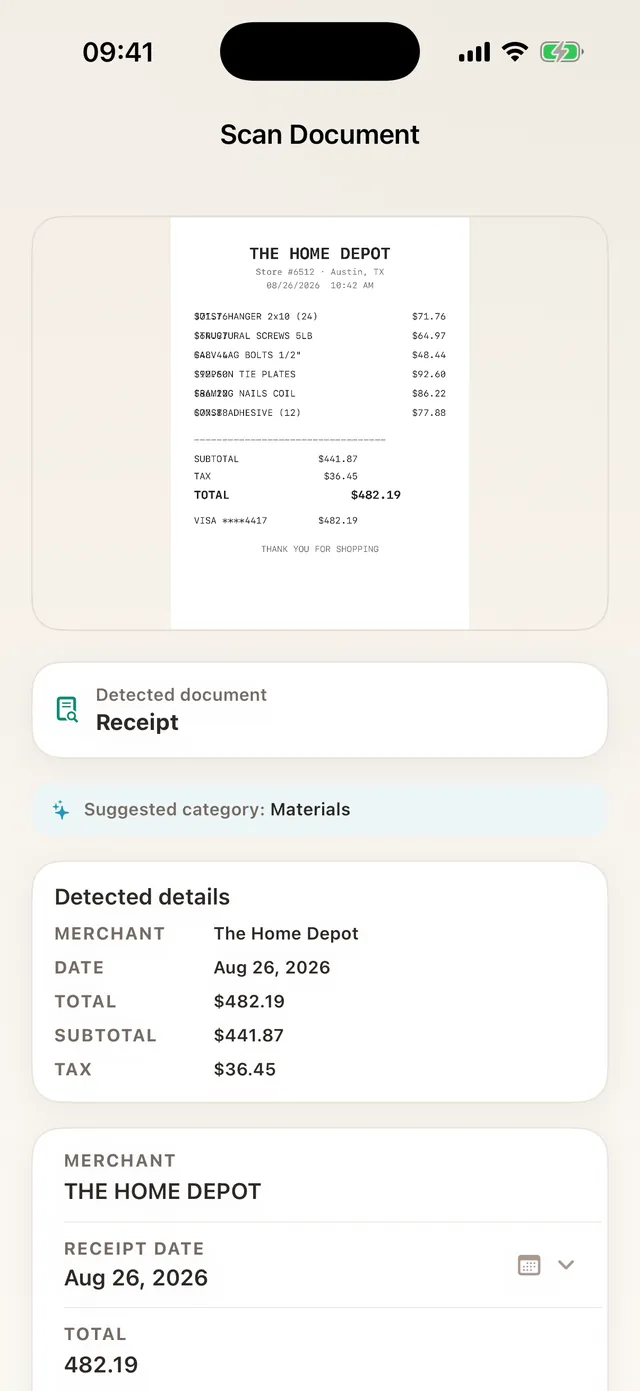
So the capture step has to fit inside those ninety seconds. Point the camera, let the merchant, amount, date and category fill themselves in, confirm, done. On iPhone you can put a Scan Receipt control on the Lock Screen and skip opening the app at all.
If your crew is somewhere with no signal, which on a job site is most of the time, capture still has to work. Expenses, receipts and requests queue on the phone and submit themselves when the connection returns.
6. Approve before the money moves, not after
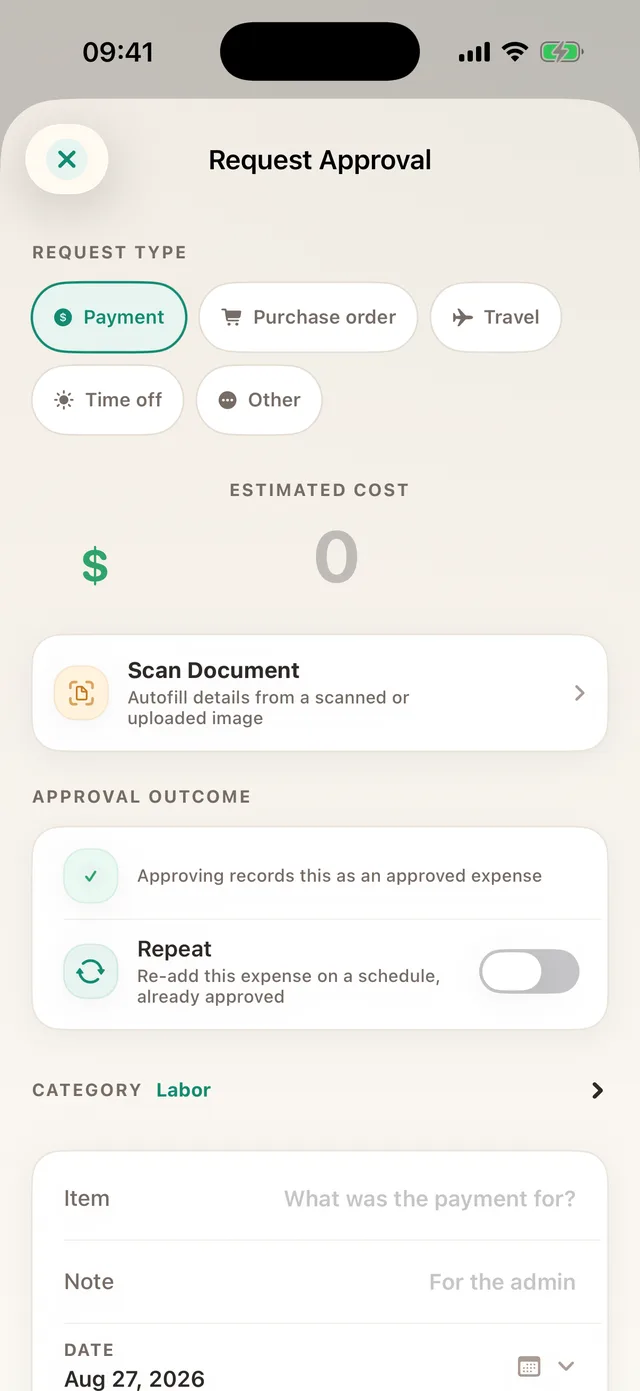
Approving an expense after it is paid is not approval, it is bookkeeping with a confirmation dialog. The decision that changes an outcome happens before the purchase.
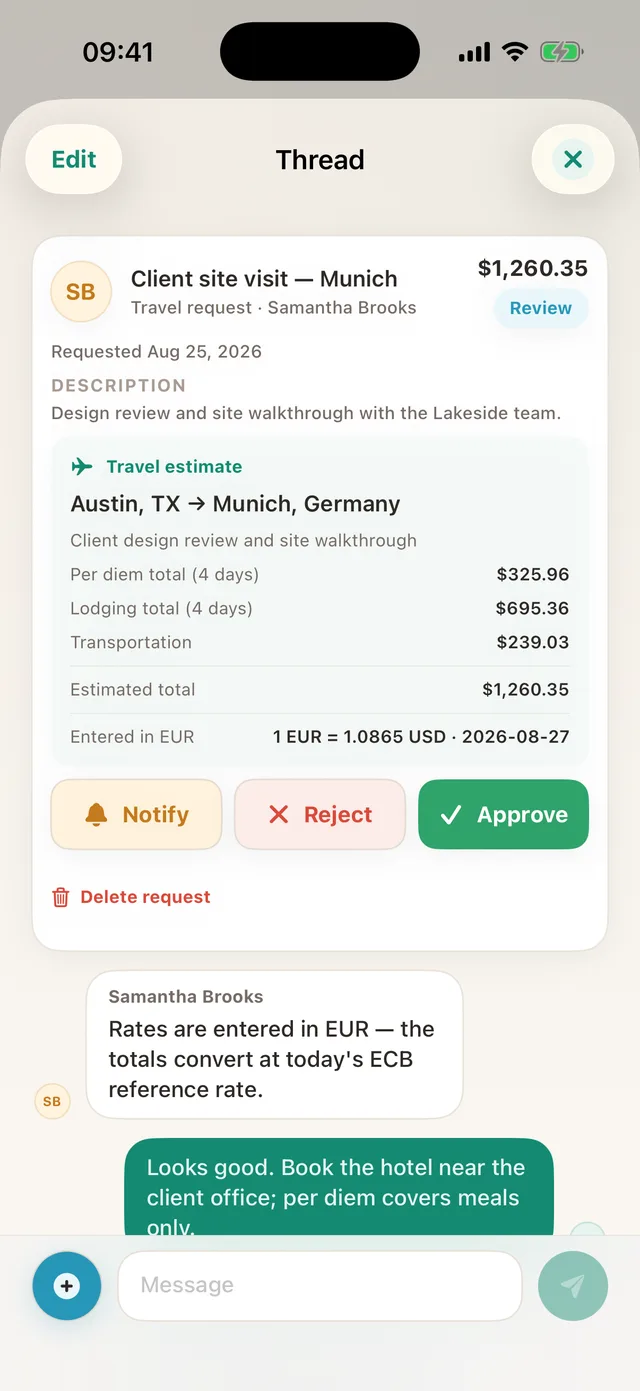
A pre-approval request carries the amount, the category, the reason and the quote. Approvers get a queue, decide from a phone, and the approved request becomes a logged expense with the decision attached. Questions live in a thread on the request itself, so “why did we buy this?” has an answer six months later.
7. Reconcile the statement, do not retype it
At the end of the month there is a card or bank statement with rows nobody has seen. Import it as a PDF or CSV instead of retyping it: TaskSpend reads the rows, classifies charges against refunds by sign, and files them as expenses you can categorise in bulk.
Then do one pass looking for the same expense twice, which is what a month-end Spending Review is for. A receipt photographed on site and the same charge landing later on the statement is the most common double count there is.
8. Close the month and report
Two audiences, two outputs. Your accountant wants the ledger: push approved expenses to QuickBooks Online or Xero, or export CSV. Your client or your own records want the story: an itemised PDF for the project or date range, receipts attached.
Six ways teams track project costs, and which to combine
There is no single right way to track project costs. There is a right way for the size of your team, the speed money moves, and how much process people will actually tolerate. Six, from the cheapest to the most complete, with the honest cost of each.
1. The shared spreadsheet
One sheet per project, somebody types the rows in. Free, universally understood, and correct only on the day it is updated; the person maintaining it is doing data entry instead of their job, and proof lives somewhere else, usually a camera roll. Right for a solo operator on one short project, or as the thing you will replace.
2. Card statements at month end
Nobody tracks anything during the month; at the end you assign each statement row to a project. Every decision is retrospective: you find out in September that August went over. Cash and personal cards vanish, and nobody remembers what “SQ *MERCHANT 4471” was. If you do work this way, at least stop retyping: a PDF or CSV statement imports directly, charges and refunds separated by sign, categorised in bulk, free on every plan.
3. Job costing inside your accounting software
QuickBooks Online projects or Xero tracking categories. The ledger is the right system of record and the wrong capture surface: it sees money only after it has moved, so it can report a problem but never prevent one, and the people doing the spending will not log into it. Keep it, as the destination rather than the whole method.
4. Phone-first capture with a dedicated app
Whoever spends the money captures it at the counter: photographed, read, categorised and filed against the project before they leave the shop. It costs a tool to learn and, past a free tier, a subscription. In return the budget is current rather than reconstructed, and proof is attached to the expense instead of scattered across five camera rolls.
5. Track commitments, not just payments
The moment a purchase is approved, the money counts against the budget, whether or not it has left the account. This is the difference between what you have spent and what you have promised, and it is the discipline that actually prevents overruns rather than documenting them. Use it for anything with a lead time: subcontractors, equipment, deposits.
6. Per-category budgets with real alerts
The project budget is split across cost categories and each one is watched independently. Labour can be fine while materials are 30% over, and you find out while it still matters. Twenty minutes of setup per project, and the discipline of categorising as you go. There is a walkthrough in how to use budget cost resources.
So which one? Almost every small team ends up combining three: phone-first capture during the month, commitment tracking for the big items, and the accounting ledger as the destination. The spreadsheet is a starting point and the statement-only approach is what you are escaping. That is what TaskSpend is: it does not replace your accountant’s software, it feeds it clean data.
TaskSpend is free for one project, ten teammates, 100 expenses and 50 requests a month, including budgets, receipts, approvals, statement import and five invoices a month. Premium lifts the caps and adds accounting sync.
Six tips that change the numbers
- Make capture shorter than the alternative. If photographing a receipt takes longer than shoving it in a pocket, the pocket wins. Every time.
- Budget the contingency explicitly. An unnamed 10% buffer gets spent invisibly. A named one gets spent deliberately.
- Track commitments, not just payments. An approved $8,000 subcontractor quote is money gone, whatever the bank balance says.
- Set auto-approval limits high enough to be used. A limit that stops everything trains people to route around it.
- Reconcile weekly, not monthly. Five minutes on a Friday beats three hours on the 31st, and you can still act on what you find.
- Keep the original currency and the original amount. If a supplier invoiced in euros, that euro figure is the fact. The converted number is a derived value, and it should say so.
A realistic first week
Day one: create the project, set the budget, pick the template, adjust the categories. Twenty minutes.
Day one: invite the team, set roles, set an auto-approval limit per category. Ten minutes.
Days two to seven: everyone captures at the counter. Nothing else changes.
Day seven: import last month’s statement, run one review pass, look at the budget by category. Half an hour, and you know where you stand.
Start tracking the next project properly
Set a budget, capture receipts on the spot, and approve before the money moves.
Get TaskSpend