How to use budget cost resources in TaskSpend
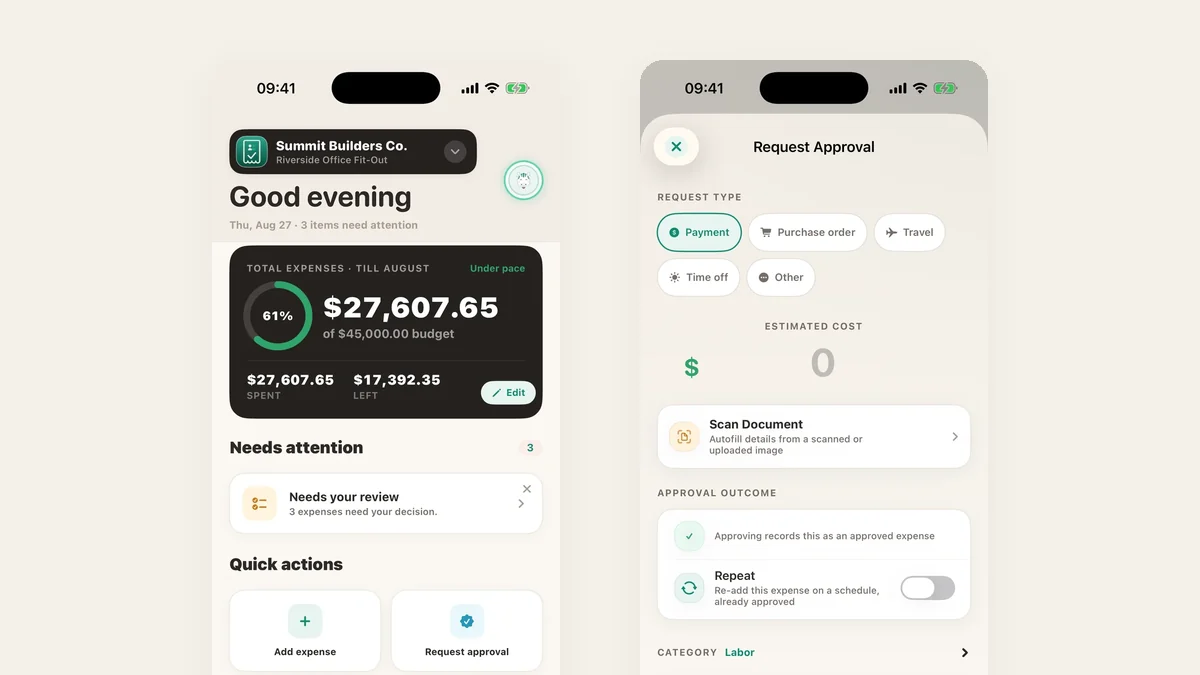
A project budget of $45,000 tells you when you are in trouble. It never tells you where. Cost resources are how you split that single number into the things the work is actually made of, so the budget can point at the problem instead of just announcing one.
What a cost resource is
A cost resource is a named category inside a project with its own slice of the budget: Labour, Materials, Equipment, Subcontractors, Permits, Travel. Every expense files against one, and each one is tracked against its own allocation.
The test for whether a category earns its place: would seeing it 30% over change what you do next week? If yes, it is a cost resource. If not, it is detail, and it belongs inside another one.
Start from a template
You do not have to invent the list. When you create a project, pick the template closest to the work: Construction, Film & Production, Events, Consulting, Marketing, Operations, Product, Research, Finance, or the household ones for a home project, a family event or a trip.
The template seeds the categories, splits the budget you entered across them by weight, and sets a default auto-approval limit on the ones that usually deserve one. A construction project arrives with Materials, Labour, Equipment Rental and Subcontractors already weighted, not with an empty list.
Everything it creates is ordinary project data. Rename a category, reweight it, delete one, add your own.
Decide what the budget means before you split it
TaskSpend asks whether the project budget is an overall figure for the project’s life or a monthly one that resets. This changes the arithmetic under every category.
- Overall budgets are never divided across periods. Switch the Budget tab to Week, Month or Quarter and you see that period’s spend against the same full figure.
- Monthly budgets scale with the period you are looking at.
Choose overall for a fit-out, a production or a fixed-scope engagement. Choose monthly for retainers, maintenance and operations.
Allocating across a timeline
For work that runs over months, turn on Budget Allocation and the same figure is shown four linked ways: weekly, monthly, quarterly and total. Edit any row and the others follow.
The arithmetic is deliberately plain, so the numbers reconcile with whatever you already have in a sheet: a quarter is three months, a quarter is thirteen weeks, so weekly is monthly × 3 ÷ 13, and the total spreads the monthly figure across the project timeline. Set the number you actually know and let the rest derive.
Give each resource an approval rule
A cost resource can carry two rules, and together they are what stop the category from needing a human in the loop for everything:
- Auto-approval limit. Expenses at or below the amount approve themselves. Set materials to $250 and a box of screws stops interrupting anyone, while a $1,200 order still comes to you.
- Receipt required over. Above this amount an expense is not complete without its receipt attached, so proof is enforced where it matters rather than nagged for everywhere.
Auto-approval rules are free on every plan. The aim is not fewer approvals for their own sake, it is that the ones left are worth reading.
Watching them
The Budget tab lists every cost resource with its allocation, its spend and a bar. Tap one to see the expenses behind the number. Categories that are actually over their allocation surface as alerts to Owners and Approvers, and only when they are genuinely over, not at an arbitrary 80% warning that everyone learns to ignore.
Because pre-approved requests count against the budget when they are approved rather than when they are paid, a category shows committed money too. That is usually the difference between finding out now and finding out in the statement.
When a cost lands in another currency
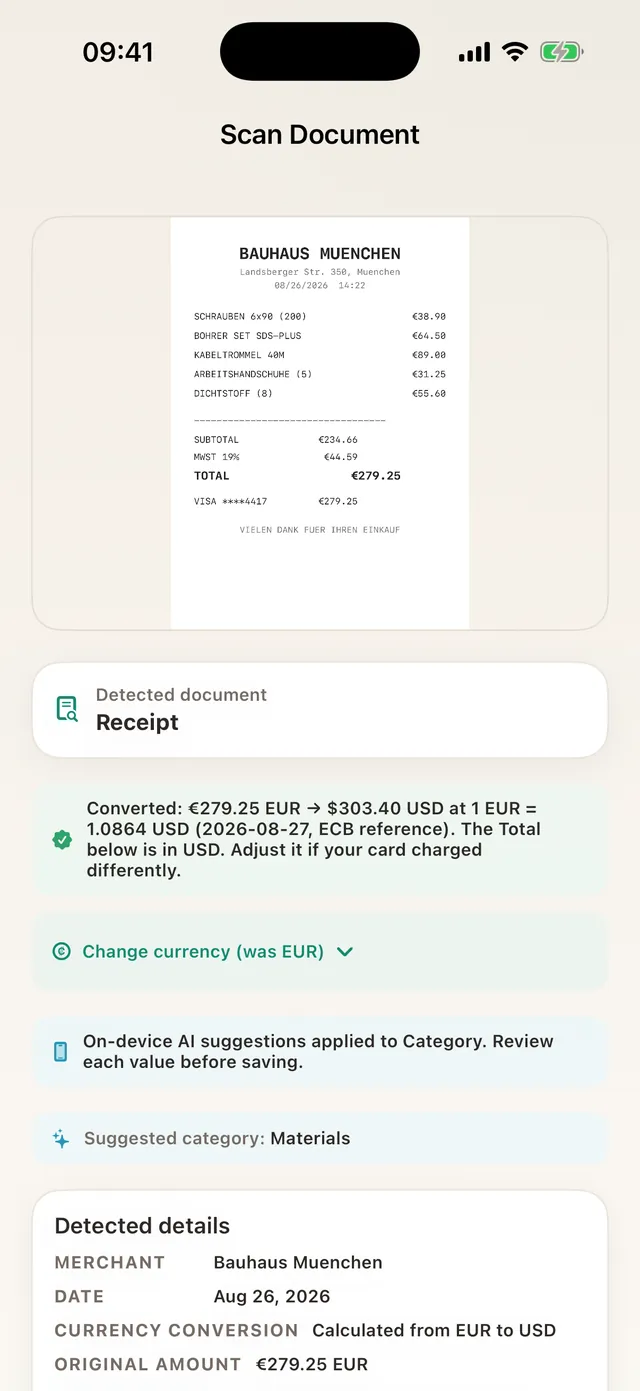
A supplier invoice in euros still has to file against a dollar category. TaskSpend converts it at that day’s European Central Bank reference rate, names the rate and the date on the expense, and keeps the original amount and currency attached. The category sees a comparable number; the record keeps the fact.
Reporting by cost resource
Once spend is categorised, the reports are the easy part: totals by category for the project or any date range, as PDF with receipts attached or CSV for a spreadsheet. If you sync to QuickBooks Online or Xero, categories map to your accounts so the split survives the trip into the ledger.
Split the budget, then watch each piece
Start from a template, set a limit per category, and see where a project is going before it gets there.
Get TaskSpend