TaskSpend 1.3: Siri, submittals, cash flow, and how to use them
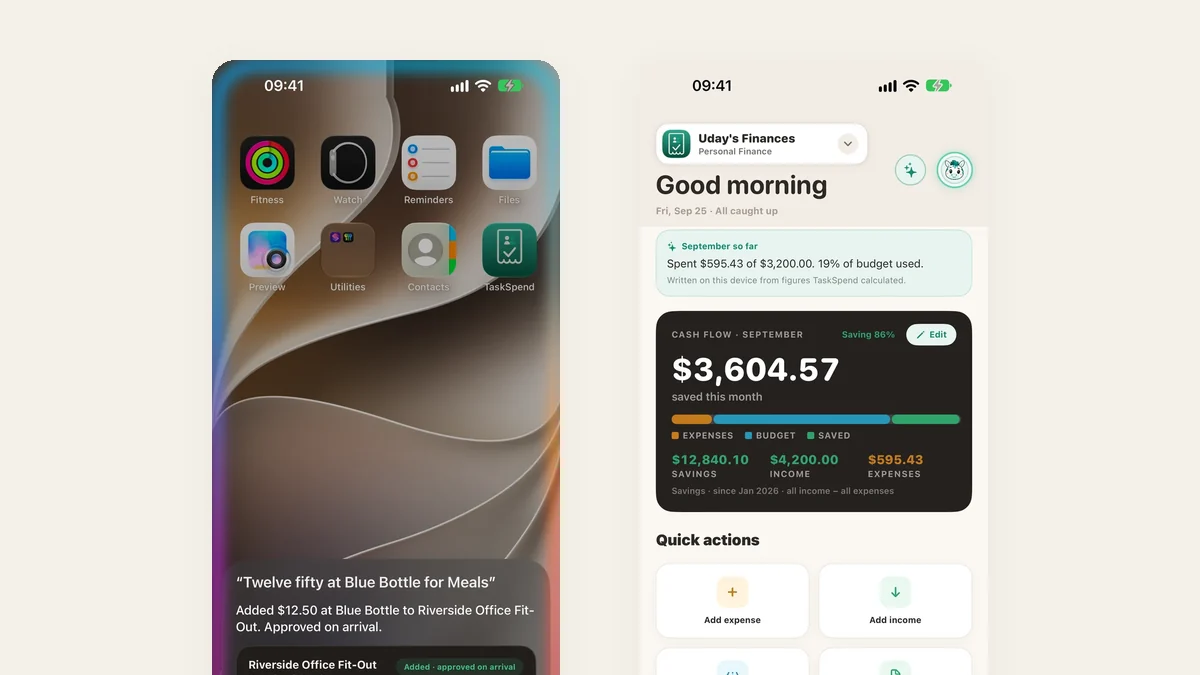
TaskSpend 1.3 is on the App Store. You can now add an expense by talking to Siri, without opening the app. You can ask TaskSpend what you spent. Big purchases can go to a teammate for review before you approve them. Personal workspaces show what you saved this month, and subscriptions add themselves. Here is what each one does, and exactly how to use it.
Add an expense with Siri, even with the app closed
Siri can now add an expense for you from anywhere: the Home Screen, the Lock Screen, or while you drive. It reads the details back before anything is saved, so nothing lands by accident.
- Say “Hey Siri, add an expense in TaskSpend.”
- Tell Siri the amount and where you spent it, for example “twelve fifty at Blue Bottle.”
- If you have more than one project, pick which one it belongs to.
- Siri reads it back. Say or tap Add.
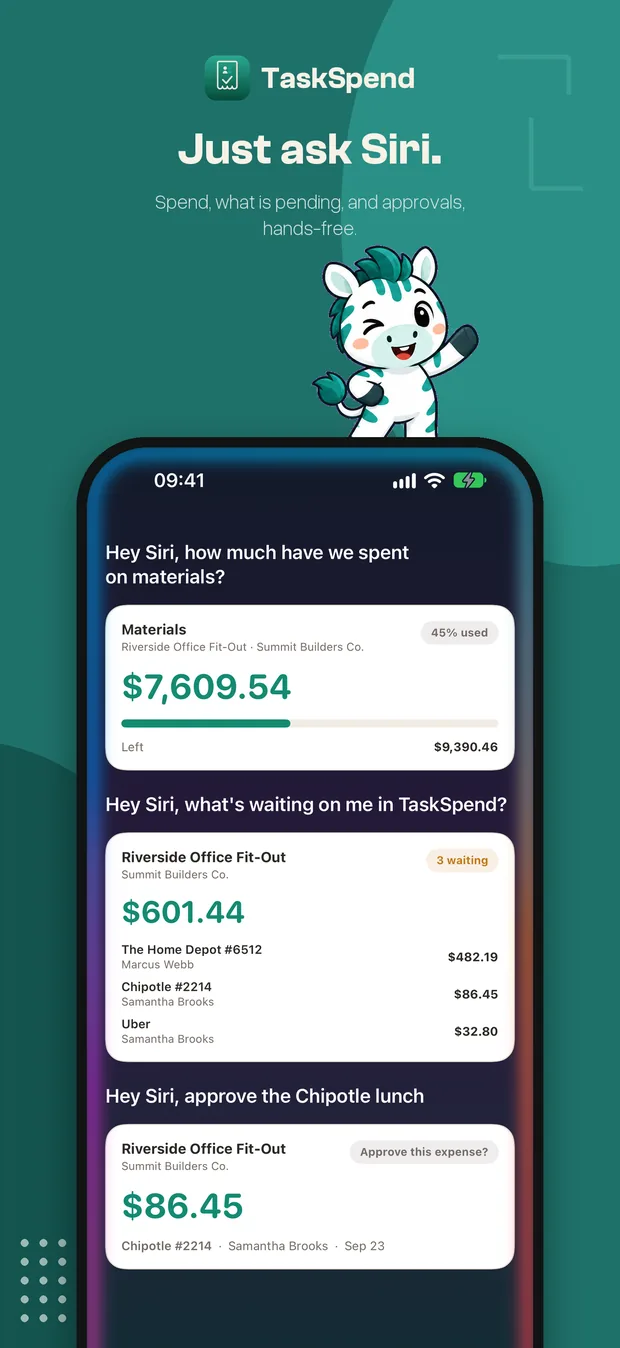
You can ask Siri questions too: “How much have I spent in TaskSpend?”, “How much budget is left in TaskSpend?”, or, if you approve expenses, “What’s waiting for my approval in TaskSpend?” Siri answers with a card showing the numbers, and you can approve from there.
Ask TaskSpend
A chat that knows your projects. Ask about subscriptions, spending by category, your biggest expenses or what is waiting on you, and get the answer with the numbers behind it. It runs on your iPhone, so your questions and your data stay on the device.
- Open Home and tap the sparkle button at the top right.
- Tap a suggested question, or type your own, for example “total subscriptions this month.”
- Tap any answer card to jump to the expenses behind it.
On iPhones with Apple Intelligence you can type any question. On other iPhones, Ask TaskSpend offers quick questions you can tap.
Submittal requests: a second pair of eyes before you spend
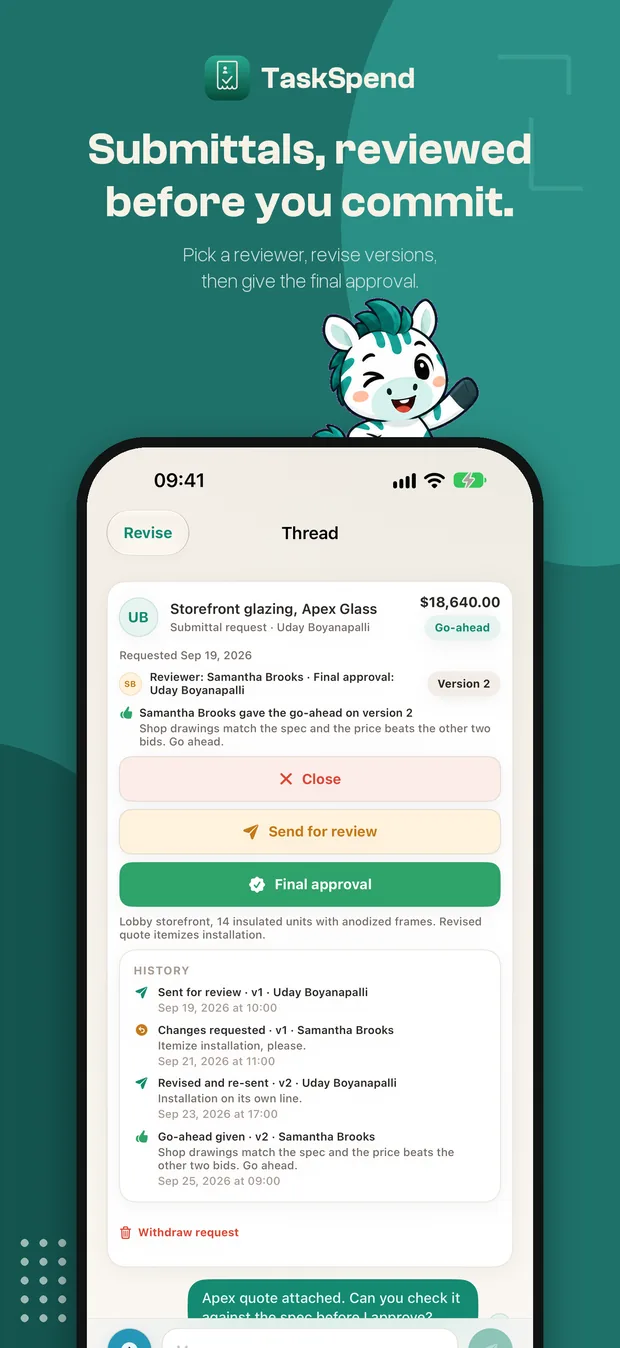
For quotes, shop drawings and big purchases, choose a teammate to review the request first. They either give the go-ahead or ask for changes. You revise it (every revision is saved as a new version), and when the reviewer is happy with the latest version, you give the final approval.
- On Home, tap Submittal request.
- Fill in what it is for and the amount, and attach the quote.
- Under Reviewer, pick the teammate who should check it, then tap Send for Review.
- Your reviewer taps Go Ahead, or Request Changes with a note.
- If changes are asked for, edit the request and it goes back to them as the next version.
- Once they give the go-ahead on the latest version, tap Final Approval.
Every step is kept in the request’s history, so you can always see who reviewed which version and what they said.
Cash flow for your Personal workspace
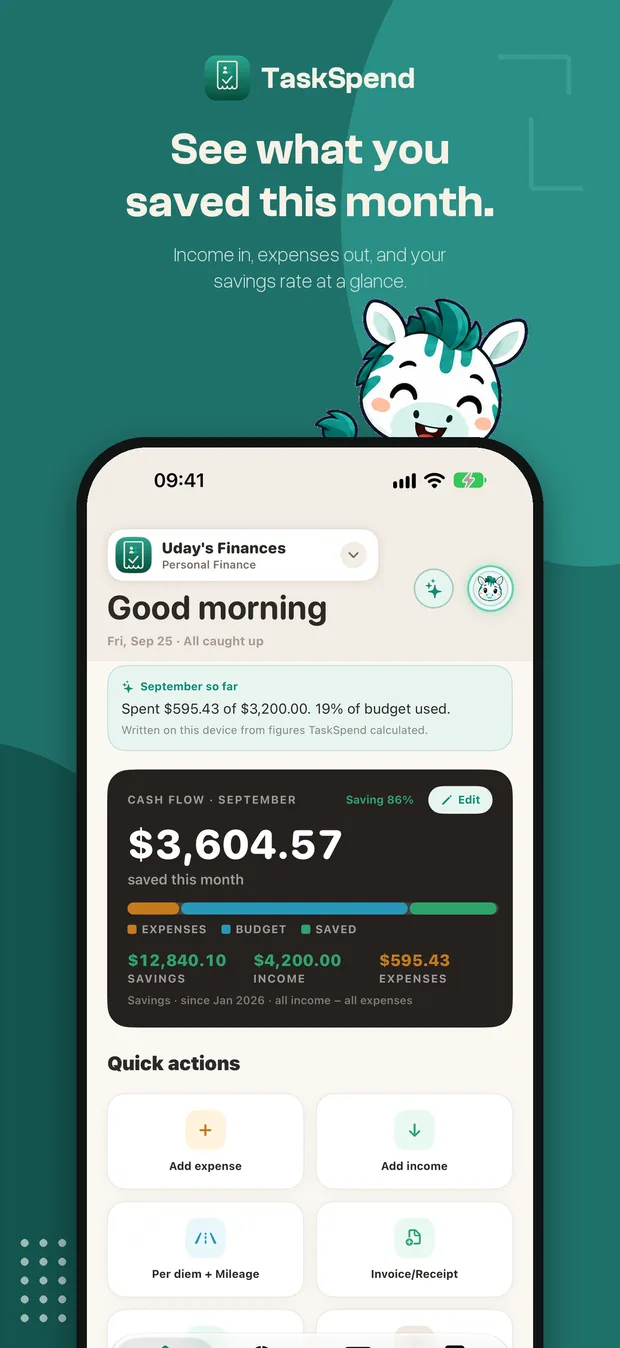
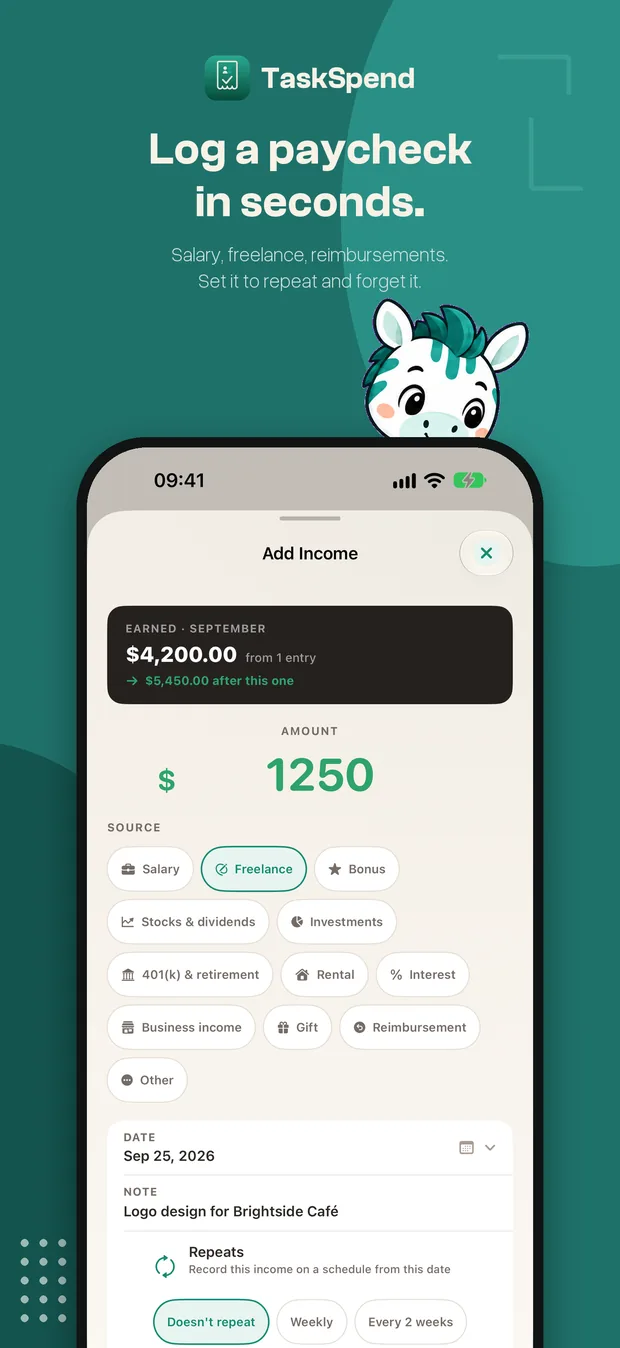
Personal workspaces now track money coming in as well as going out. Home shows what you saved this month, your savings rate, and your income and expenses side by side.
- Open your Personal workspace.
- On Home, tap Add income.
- Enter the amount and choose a source: salary, freelance, a bonus, a reimbursement and more.
- Turn on Repeats for a regular paycheck so it adds itself.
Income stays private to your Personal workspace. It never appears in Family or Business workspaces.
Subscriptions on autopilot
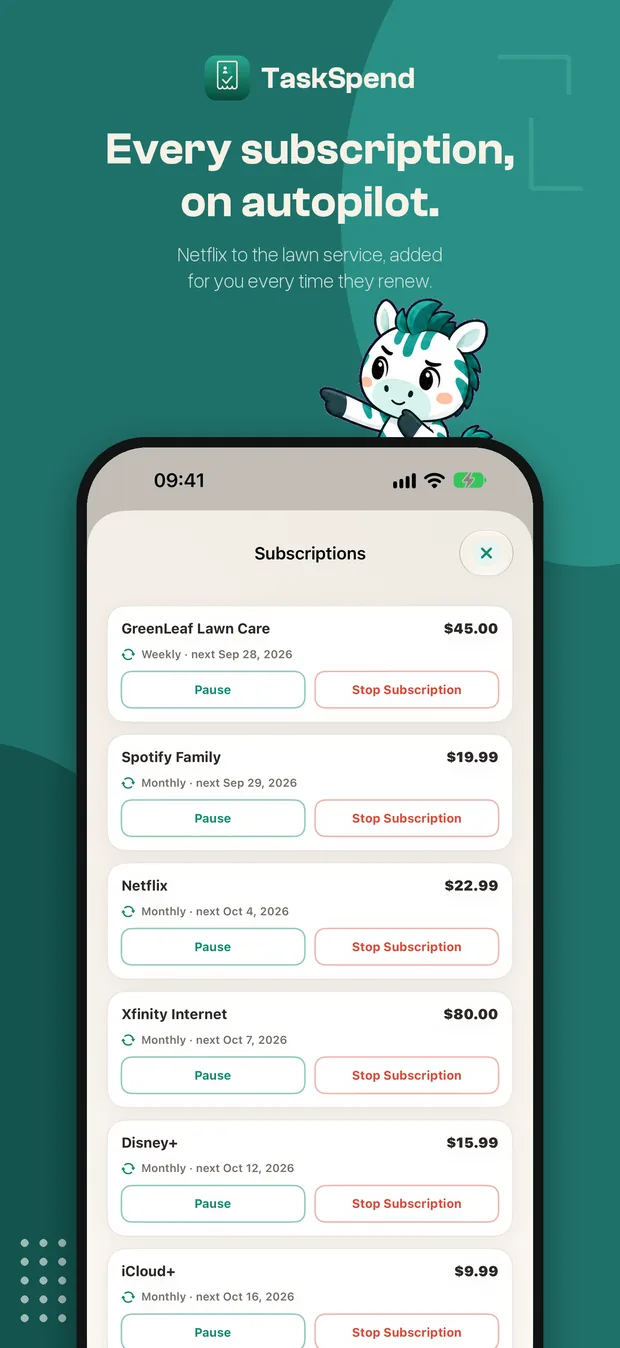
Netflix, internet, the gym, the lawn service. Set a recurring bill up once and TaskSpend adds it each time it renews, through the same approvals as any other expense.
- Tap Add expense and enter the bill as usual.
- Turn on Subscription and choose how often it repeats.
- Save. You will find it, and every other repeat, under Expenses → Recurring, where you can pause or stop it any time.
More you can do on the web
Owners and approvers can do the desk work at app.taskspend.com, with the same account and the same workspaces:
- Import a bank or card statement. On Expenses, click Import statement and drop in the CSV from your bank. TaskSpend finds the date, description and amount columns, you untick anything that doesn’t belong, and the rest arrives as one batch to approve.
- Approve many at once. In Approvals, tick expenses across projects (or press X) and approve or reject them together.
- Re-categorize in bulk. Select expenses and choose Set category.
- Edit every budget line at once. On Budget, click Edit allocations.
- Review submittals from your desk, with the same go-ahead and final approval as the app.
There is a whole post on the web app.
Also in 1.3
- Say it. On Add expense, tap Say it and speak the expense. It is understood on your iPhone.
- Your month in one line. Home sums up the month so far in a sentence.
- A sidebar on iPad and Mac for moving between Home, Budget, Expenses and Reports.
- Premium in gold, so you can see at a glance which workspaces it covers.
- Bug fixes and performance work throughout.
Update to TaskSpend 1.3
Free on the App Store for iPhone and iPad, with the web app included for owners and approvers.
Get TaskSpend