Scan anything: crumpled receipts, PDF invoices, card statements and any currency
Receipts arrive folded, faded and screwed up in a pocket. Invoices arrive as PDFs. Spending arrives as a card statement at the end of the month. And sometimes it is all in euros. TaskSpend reads every one of them, and it does the reading on your phone. Here is what it can take in, what it pulls out, and the one rule behind all of it: nothing is saved or sent until you have looked at it and said yes.
Crumpled, curled and faded receipts
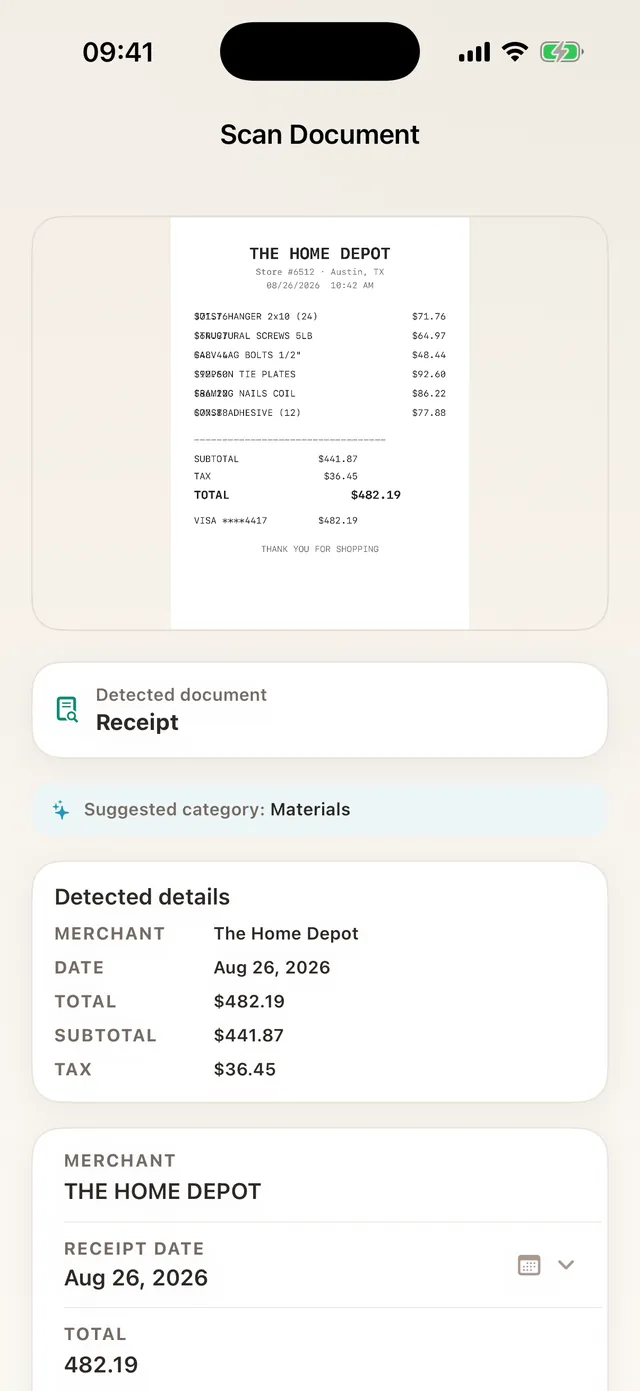
Real receipts are rarely flat. Tap the camera and the scanner finds the edges of the paper on its own, crops away the table it is lying on, and straightens the picture so a curled or creased receipt reads like a flat one. Then the text is read with Apple’s built-in text recognition, right on the device.
From that text TaskSpend fills in the merchant, the date, the total, the subtotal and the tax, and suggests a category. It checks its own work too: when a receipt prints a subtotal and tax that add up to the total, that total wins, and a wallet balance or loyalty-points line is never mistaken for what you paid.
- Open TaskSpend and tap the camera (or the Scan Receipt control on your Lock Screen).
- Hold the phone over the receipt. Crumpled is fine; the scanner flattens it.
- Check the details it filled in, pick the project and submit.
PDFs and files, not just photos
Plenty of receipts never exist on paper: the hotel folio in your email, the online order, the supplier’s PDF. Tap Choose File in the scanner and pick a PDF or an image from Files. TaskSpend reads the first five pages and attaches the original file to the expense, so the exact document your accountant needs is one tap away. Longer PDFs still attach; you just type the amount yourself.
Invoices, read like an invoice
TaskSpend recognises what kind of document it is looking at before it reads it: a receipt, an invoice, a quote, a purchase order, a statement, a boarding pass, a booking. An invoice is read as an invoice. That means the invoice number, the invoice date, the due date, what was already paid and the balance still owed, not just a single total. If the invoice number happens to look like a price, it is still never picked as the amount.
Every number TaskSpend fills in is a suggestion. The money maths, totals, tax and conversion, is done with exact arithmetic, never by an AI guess.
Optional: cloud AI for the full detail
On-device reading covers everyday receipts. For long supplier invoices, dense hotel bills and statements, Premium workspaces can switch on AI document analysis. It adds:
- Itemisation: the notable line items on a receipt, not just the total.
- The fine print: merchant address and phone, document number, due date, tip, amount paid, balance due, and the last four digits of the card used.
- A plain-English explanation of what the document is, for example a booking confirmation or a monthly statement, plus key details like flight number, route or account period.
- For statements, a spending breakdown: dining, fuel, travel and so on, largest first, shown as an estimate and never typed into an amount field.
- A category picked from your own project’s categories, with a confidence score, and a clear warning when something needs a careful look.
How it is handled matters as much as what it does:
- It is off until you opt in, with a consent step on your account. Turn it off any time and scanning carries on, on your phone.
- Only the text your phone read is sent, never the photo or the PDF itself.
- Card numbers, bank and account numbers, ID numbers and full street addresses are masked on the phone before anything is shown or sent.
- The AI only suggests. Every value is checked against the document’s own text, and you accept or edit each one.
CSV and PDF card statements, privacy first
Already have a month of spending on a card? Do not photograph it receipt by receipt. Open Reports → Imports, tap Choose Statement File and pick the CSV or PDF your bank or card provider gives you.
The whole statement is read on your phone. CSV columns are matched for you (date, description, amount, whichever order your bank uses). A PDF statement uses its own text layer, and scanned pages fall back to on-device text recognition. Card numbers never leave the phone: the file itself is not uploaded.
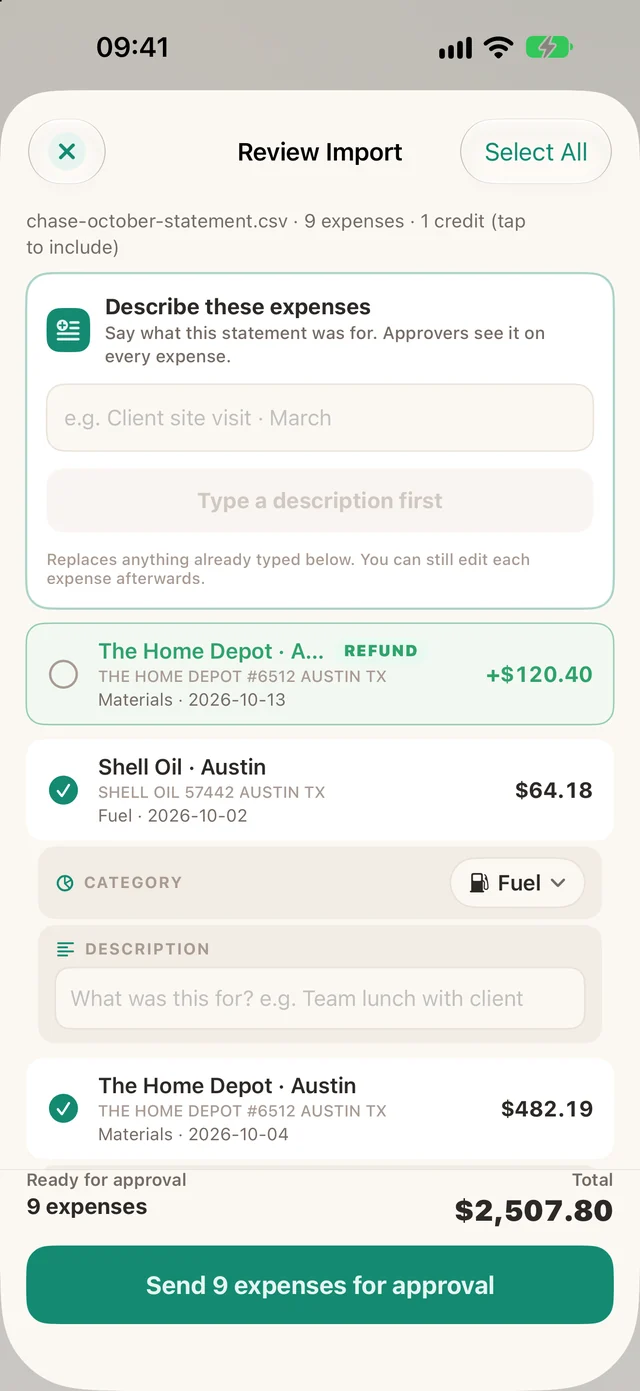
- Pick the statement file. TaskSpend lists every charge as an editable row.
- Messy merchant names are cleaned up (“SHELL OIL 57442 AUSTIN TX” becomes “Shell Oil · Austin”) and each row gets a suggested category.
- Card bill payments are shown but can never be imported, so nothing is counted twice. Refunds can be ticked in and net against the original purchase.
- Untick anything that does not belong, add a description if you like, and tap Send for approval.
Only at that last step does anything reach TaskSpend’s servers, and only the rows you kept: date, merchant, amount, category and your description. Statement import is free on every plan; on the free plan imported rows count toward its 100 expenses a month.
Any currency, converted at the day’s ECB rate
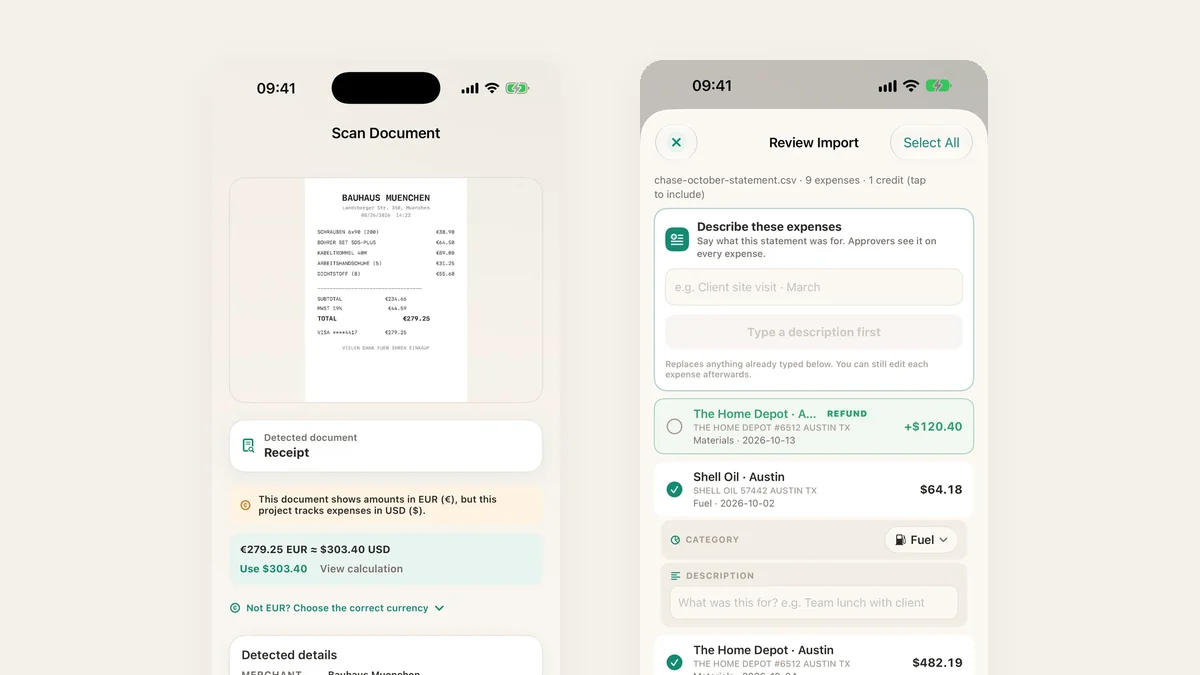
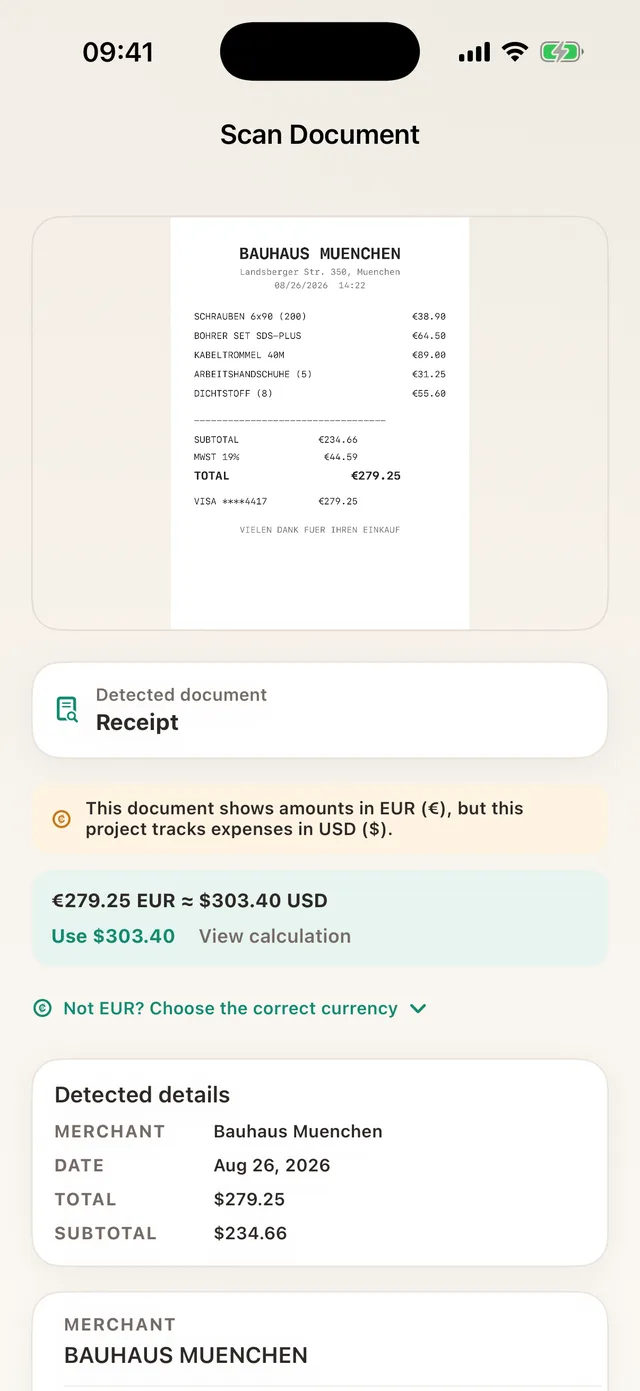
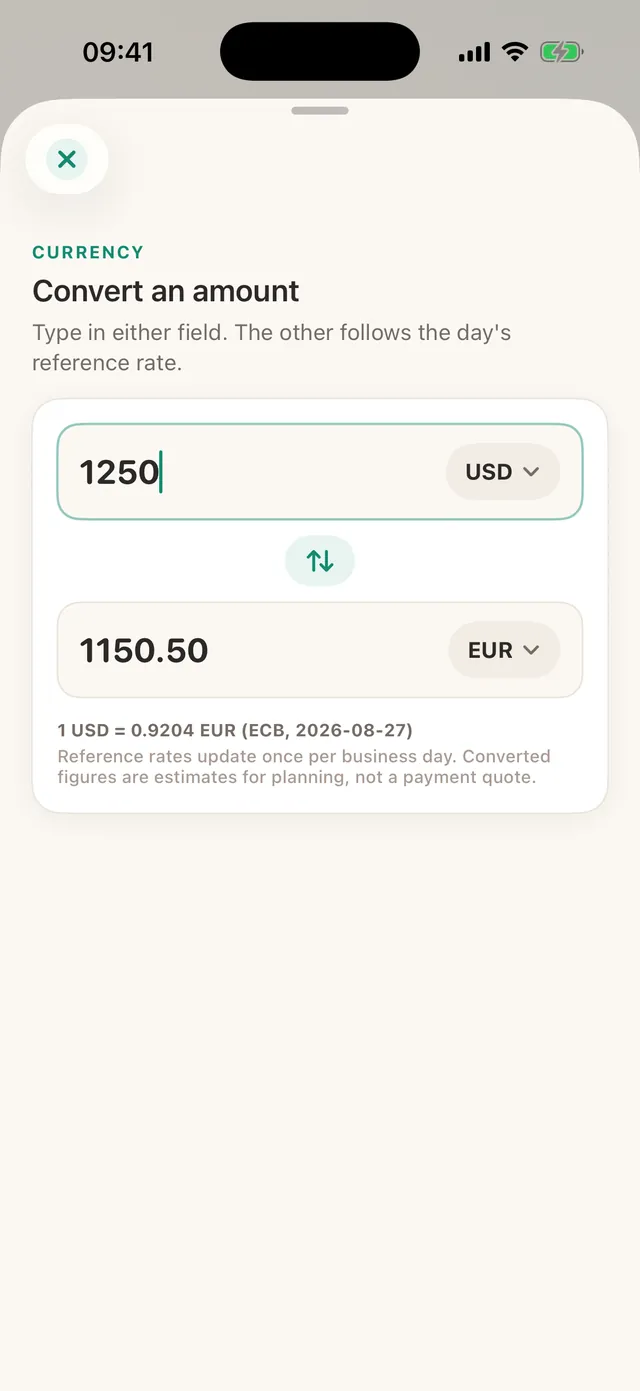
Scan a receipt from Munich into a project that tracks dollars and TaskSpend notices: this document shows amounts in EUR, but this project tracks expenses in USD. One tap on Use converts it at that day’s European Central Bank reference rate. The expense keeps both amounts, the rate and the rate date, so anyone reviewing it can see exactly how the number was reached. If the currency was misread, choose the right one and it recalculates.
- Rates are refreshed every business day from the ECB, with fixed pegs and an open daily feed filling in the currencies the ECB does not publish, about 165 in all.
- Rates are cached on your phone, so conversions work in a tunnel or on a plane.
- If your card charged a slightly different amount, just edit the total.
More on this in Euros in, dollars out.
The rule behind all of it
- Read on your phone. Receipts, PDFs and statements are read on the device, with no third-party OCR service in between.
- Nothing sent until you approve. You see every field and every row first.
- Sensitive numbers stripped. Card, account and ID numbers are masked before anything is shown, summarised or saved.
- Cloud AI only if you ask for it, and then text only.
- Receipts stay private. The images you attach live in private storage, and every request for one is permission-checked.
The habit side of this, and the Lock Screen scanner, is in Receipts, sorted.
Scan your next receipt
TaskSpend is free on the App Store and Google Play. Statement import is free on every plan.
Get TaskSpend