How to track project expenses without a spreadsheet
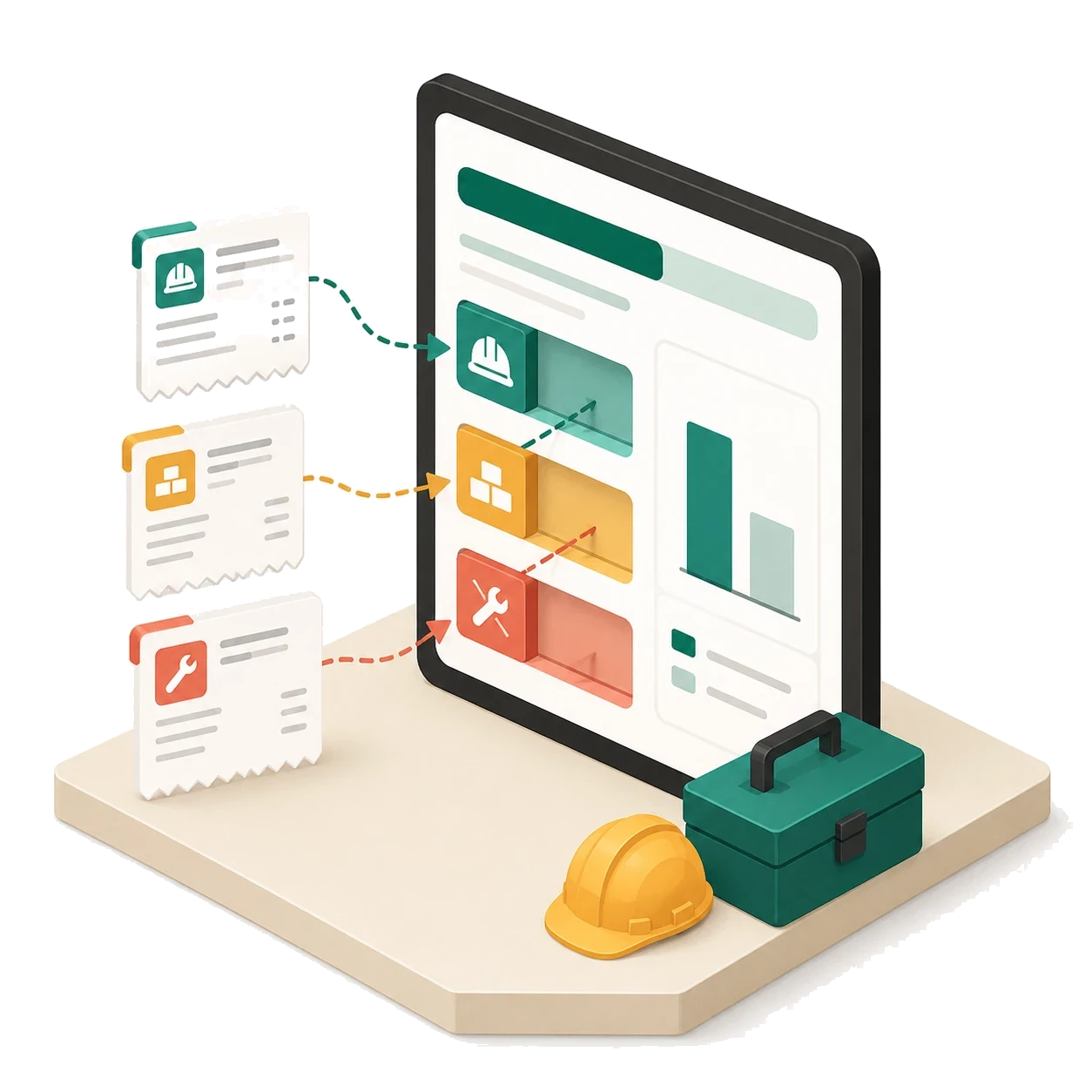
Every team has the spreadsheet. It has a proud name like Project Costs FINAL v3, and it is accurate on exactly one day: the day somebody sat down and updated it.
Why the sheet is always behind
A spreadsheet does not fail because spreadsheets are bad. It fails because it depends on a person retyping paper into cells, days or weeks after the money moved. In the gap, three things go wrong: receipts disappear, the totals drift from reality, and nobody trusts the number enough to make a decision with it. The fix is not a better sheet—it is capturing each expense at the moment it happens.
Step 1: one project, one budget
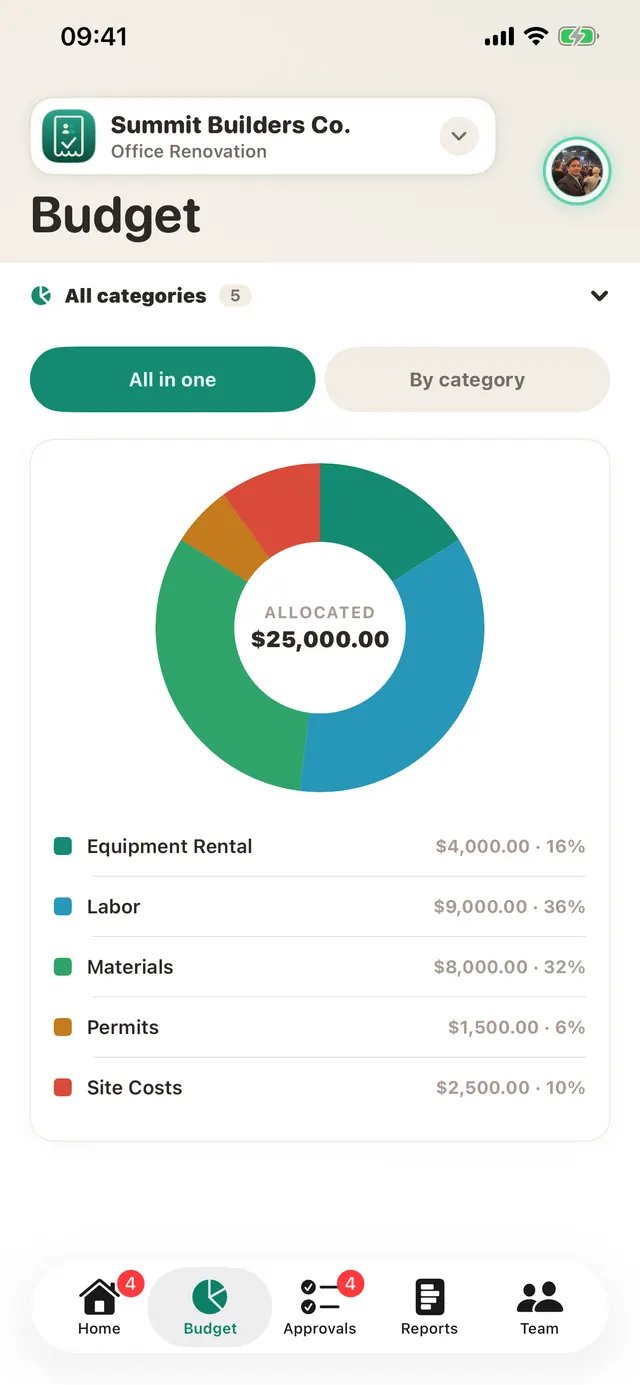
Create the project and give it a budget split into the categories you actually think in—Labor, Materials, Equipment, whatever fits the job. TaskSpend lets the budget cover the whole project or reset monthly, whichever matches how you plan. Then invite the team; each person gets a role, so members submit their own expenses without seeing the whole company’s numbers.
Step 2: capture at the moment of spending
Whoever spends, files—in seconds, not minutes. A photographed receipt fills in the merchant, amount, date, and category on its own (here is how the scanning works). For card spend, drop the monthly statement in as a PDF or CSV and every line becomes a categorised expense, refunds included.
Step 3: approvals instead of surprises
The spreadsheet only ever told you what already happened. A request-first workflow tells you what is about to happen: big purchases get asked about up front and approved before the money moves. That is the difference between reading the news and deciding it.
Step 4: let the dashboard be the spreadsheet
Spent, approved, and remaining, by category, always current—because it is built from expenses captured as they happened, not typed in later. And when someone genuinely needs a spreadsheet, export the project as CSV or a PDF with the receipts attached. The sheet becomes an output, not a chore.
Retire the sheet for one project
Free covers one project and ten people—enough to try it on your next job.
Get TaskSpend