Coming soon: connect your bank, and transactions arrive on their own
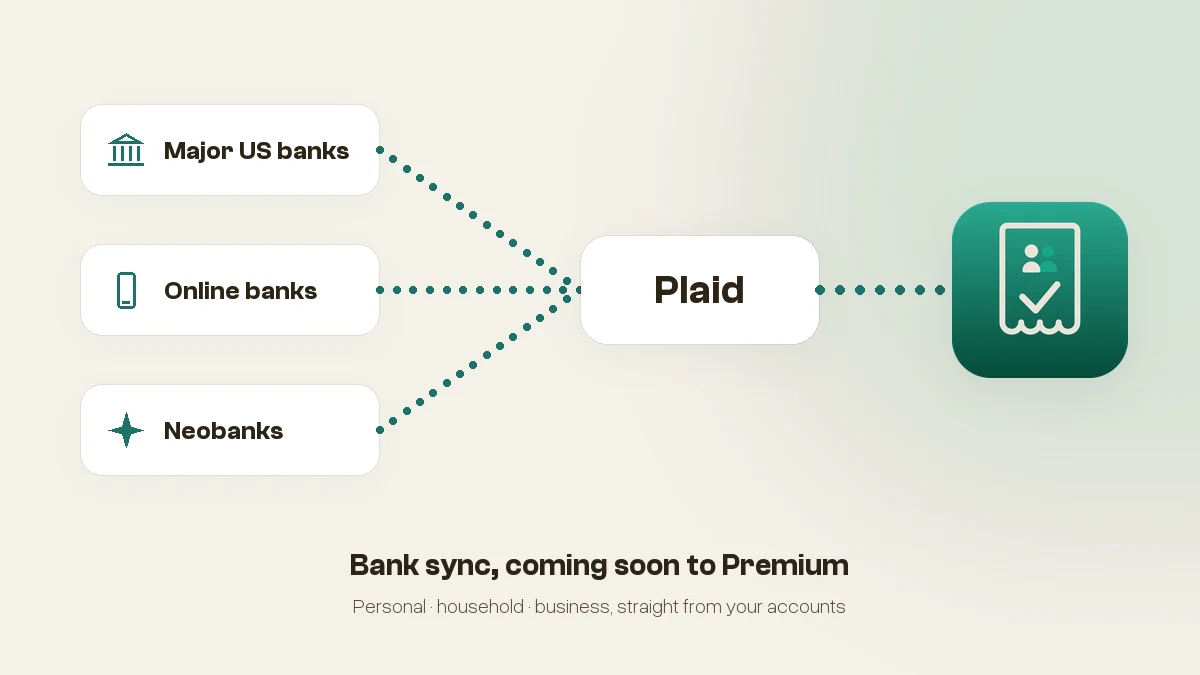
The next TaskSpend release connects to your bank. Link a checking account or a credit card once, and new purchases show up in TaskSpend by themselves, sorted by category and ready to review. It works for a personal budget, a household, or a business, and it is built on Plaid, the connection layer behind thousands of finance apps.
What bank sync does
Today, money reaches TaskSpend three ways: you scan a receipt, you type an expense, or you import a statement. Bank sync adds a fourth that needs nothing from you after the first minute. Once an account is connected, every new transaction is fetched a few times a day and waits in a Bank inbox inside the Import Center, already matched to a TaskSpend category.
You look through the inbox, tap the transactions that belong in a project, and they become expenses on that project’s budget with the bank, the account, and the last four digits recorded on each one. Skip the rest. A coffee on a personal card does not have to become a line in the books.
You choose what becomes an expense. Nothing is created behind your back, and what you import from the bank counts as reviewed, so it does not sit in an approval queue a second time.
Personal, household, and business
TaskSpend workspaces come in three kinds, and bank sync fits each of them differently.
- Personal. Connect the card you actually spend on. Groceries, fuel, and subscriptions land in your budget without a single receipt, and the month’s pace is always current.
- Household. Link the joint checking account and the family card. Everyone in the Family workspace sees where the money went, and the bigger purchases can still go through a quick request first.
- Business. Connect the company card and the operating account. Card spend arrives ready to review, receipts scanned on site match up to it, and approved expenses push on to QuickBooks Online or Xero the way they do now.
How it works
- Open the Import Center and tap Connect a bank.
- Confirm with Face ID or Touch ID. Plaid Link opens, you pick your bank, and you sign in on your bank’s own screens.
- Choose which accounts to sync. Checking, savings, and credit cards are on by default; anything else stays off until you turn it on.
- Transactions from the last few months arrive in the Bank inbox, each with a suggested category. Tap the ones you want and they become expenses.
- From then on, new transactions arrive on their own. Pull down to refresh if you want them right now.
Your login stays with your bank
This is the part we spent the most time on. When you connect a bank, you sign in through Plaid Link, the same screens used by budgeting apps, payment apps, and investment apps across the industry. Your username and password go to Plaid and your bank, never to TaskSpend. We receive transactions, account names, and the last four digits of each account number, and nothing else. No balances, no identity documents, no statements.
Every connection is protected by Face ID or Touch ID before it opens, the credentials Plaid gives us are stored encrypted, and disconnecting an account in TaskSpend also ends our access at Plaid. Only a workspace owner can connect or remove a bank.
Read the updated privacy policy for the full picture. The short version: TaskSpend never sees your bank login, and you can pull the plug any time.
Which banks
Plaid connects to thousands of banks and credit unions across the United States and Canada, from the major US banks and online banks to neobanks and the credit union down the street. If you can sign in to online banking, there is a good chance it is supported. Further countries will follow as Plaid’s coverage does.
When
Bank sync is in final testing now and arrives in an upcoming App Store update. Premium subscribers get it the day it ships, in the workspaces they already have, with nothing to sign up for. Watch the blog or the What’s new section on the homepage for the release note.
Plaid is a trademark of Plaid Inc. TaskSpend is not affiliated with or endorsed by Plaid or by any bank.
Start with what works today
Receipts, budgets, approvals, and statement import are live now, and bank sync will land in the workspace you already have.
Get TaskSpend