Scan an expense straight from your Lock Screen
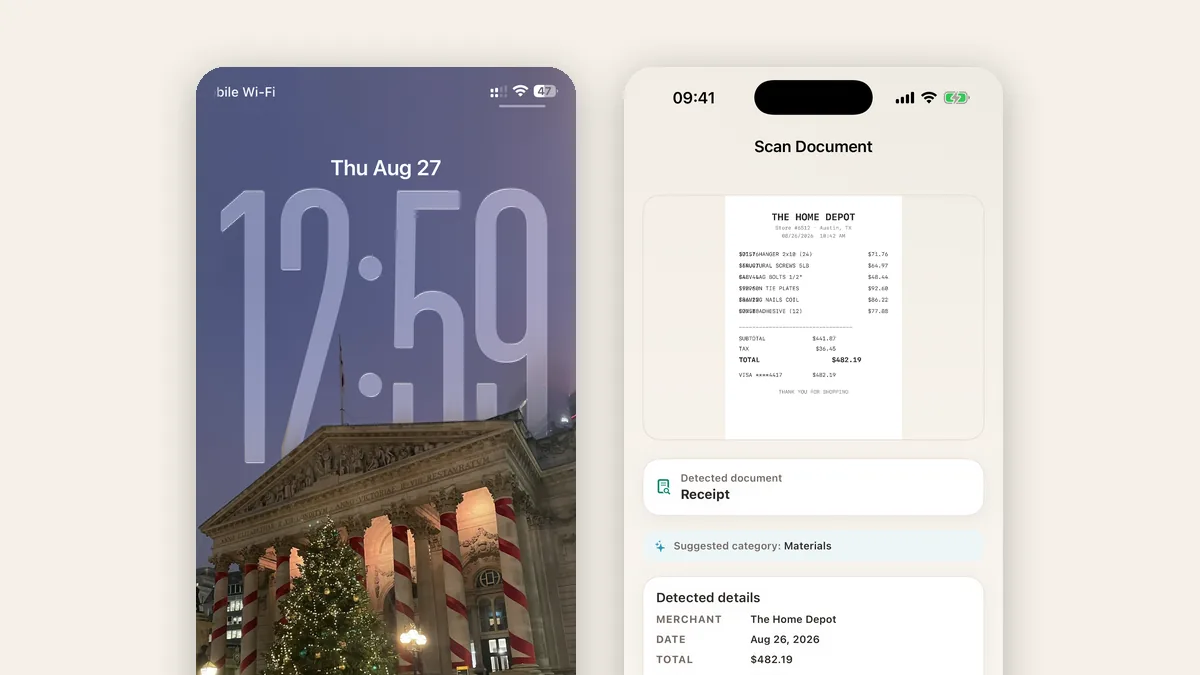
The receipts that get lost are the ones that had to wait: wait for the app, wait for the right screen, wait until you are back in the truck. So we removed the waiting. One tap on your Lock Screen now opens the scanner directly, before the receipt ever reaches your pocket.
One tap, no hunting
TaskSpend’s Scan Receipt control sits right on your iPhone Lock Screen, next to the flashlight and the camera. Tap it and you are not on the home screen looking for an icon, you are in the scanner, pointed at the receipt. The moment it reads, the expense form is already filled in.
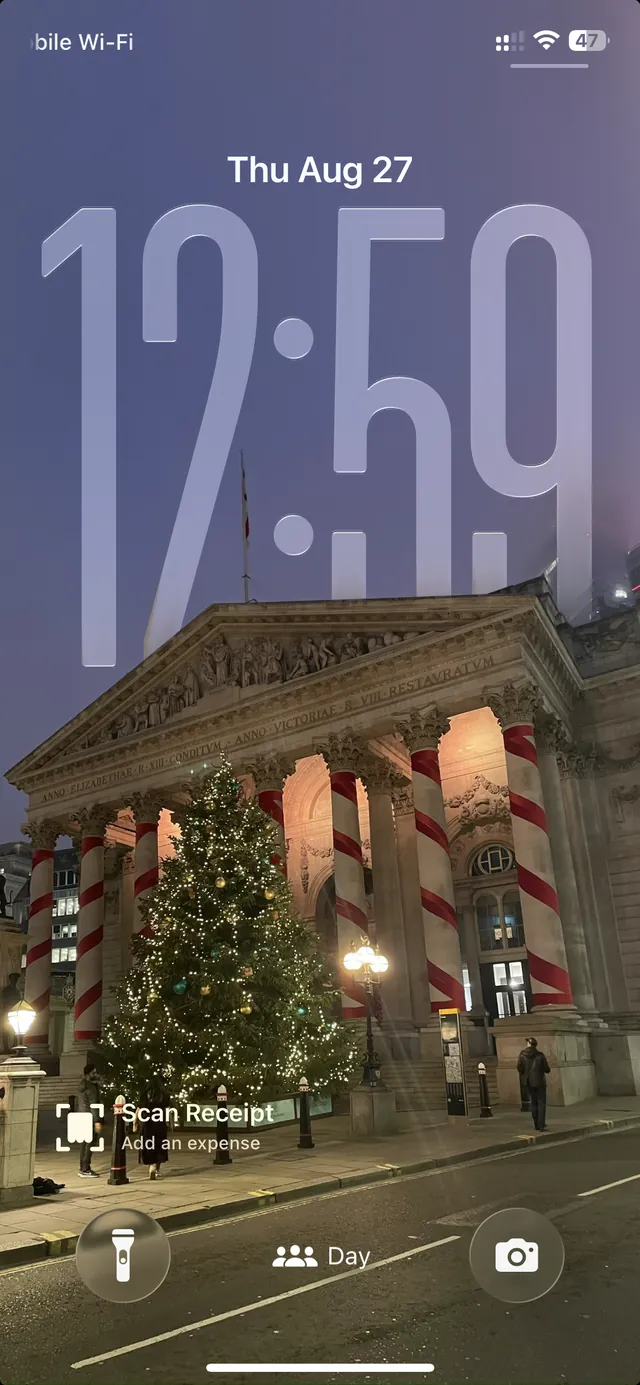
Setting it up takes a minute
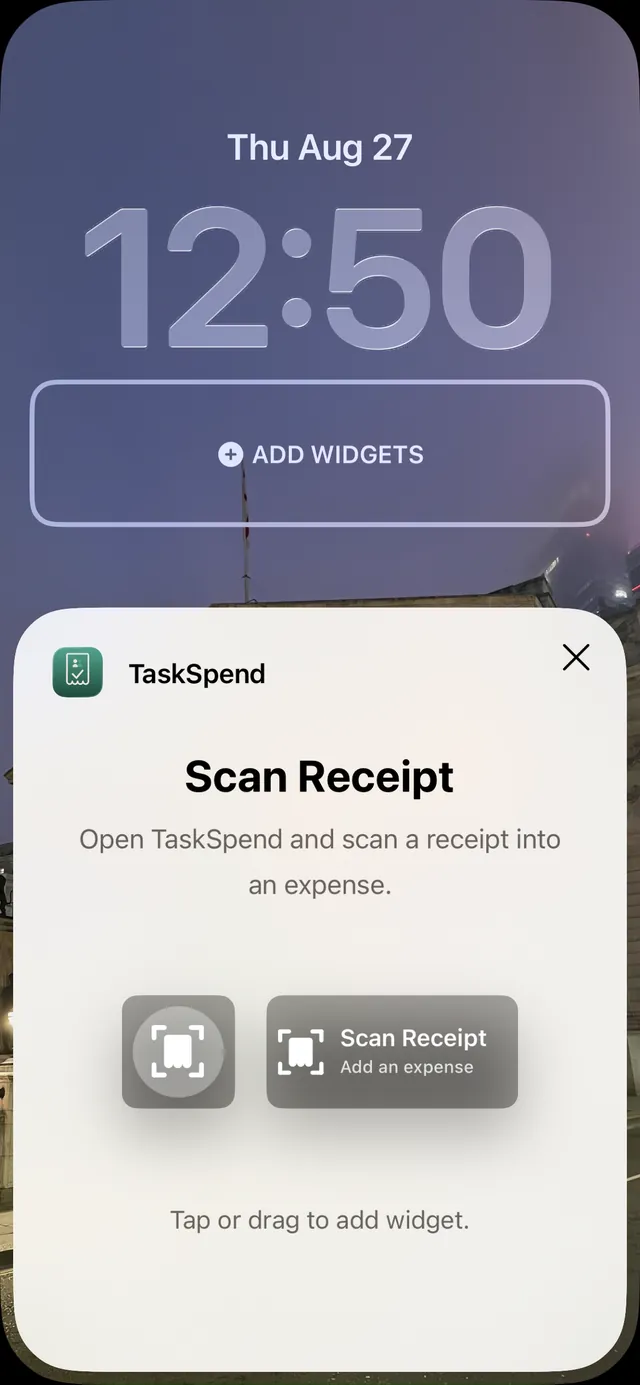
- Press and hold your Lock Screen, then tap Customize.
- Choose the Lock Screen, tap the widget area, then Add Widgets.
- Pick TaskSpend, then Scan Receipt, and tap or drag it into place.
What the tap actually does
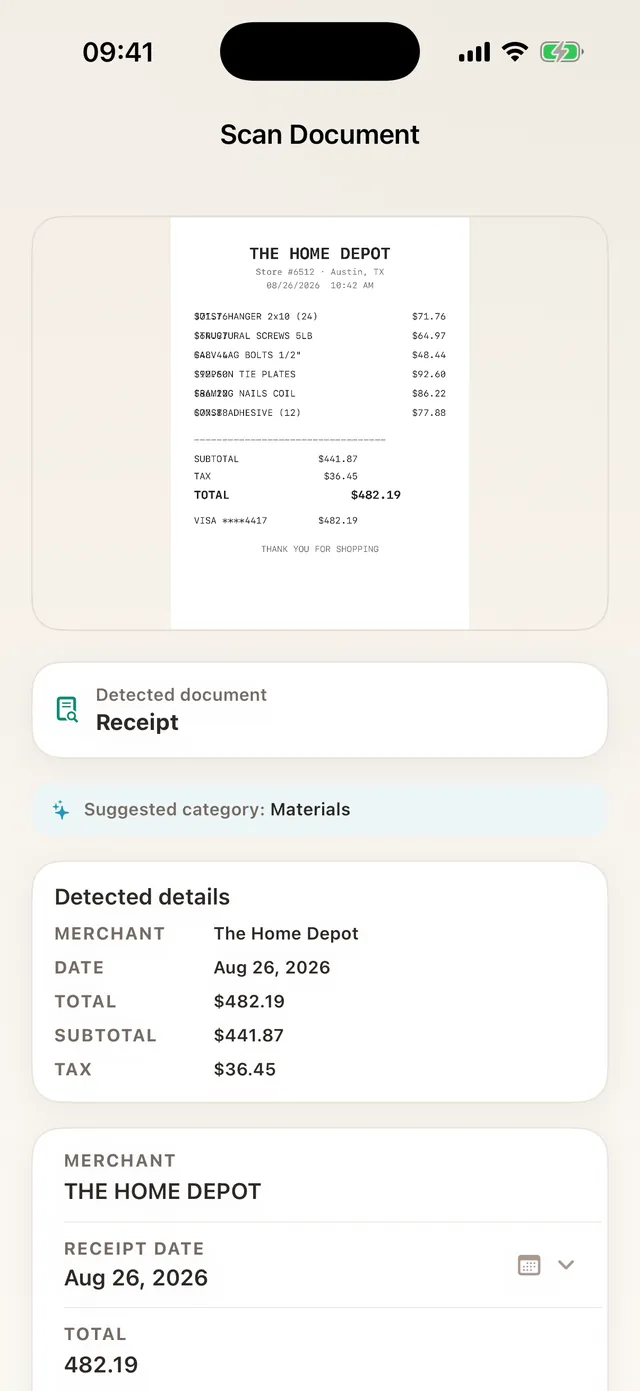
The control deep-links straight into TaskSpend’s scanner. Edges are found automatically, the text is read on your phone, and the merchant, date, and total drop into the form with a suggested category. You glance, adjust if needed, and save. In practice the whole thing takes about eight seconds, which is the difference between a receipt that gets filed and one that rides around in a jacket for three weeks.
Scanning stays on your device, and the control works on every plan. If you are curious what happens under the hood, we wrote it up in How TaskSpend receipt scanning works.
Receipts pile up when filing them costs attention. A control on the Lock Screen costs almost none, which is the whole point.
Put the scanner on your Lock Screen
Get TaskSpend, add the control, and file the next receipt before you pocket it.
Get TaskSpend